
Send messages and make calls with Messenger
Messenger (legacy SMS Chat) is a fast and convenient way to send and receive messages, enabling two-way conversations across multiple channels such as SMS, CPaaS, WhatsApp, Instagram, Facebook, and Live Chat. You can also make and receive voice calls in Messenger using a voice-enabled Textmagic virtual number.
Send a new message using Messenger
- Select Messenger from the main menu -> Click New chat.
- Type a number or contact name and click on the chat.
- Type your message. Next to the Send button, you will see how many characters and parts your message contains, as well as the cost of the message. (Learn more about SMS length.)
- Click Send.
Receiving replies with Messenger
When someone replies or sends a new inbound text message to your dedicated virtual number or another selected channel, you will see a red badge next to the Unread chats folder. You will also receive a desktop notification and hear a notification sound when a new message reaches your Messenger.
If incoming SMS alerts are enabled on your account, you will also receive a copy of every incoming message to your email.
Make and receive calls in Messenger
To make or receive calls using Messenger, you need a voice-enabled Textmagic virtual number on your account. You can buy a new number if you do not have one.
Make a call online
- Make sure you have a voice-enabled Textmagic number on your account.
- Go to the Messenger.
- Open a relevant chat or start a new one.
- Click the New phone call icon to start a new call.

Receive calls online
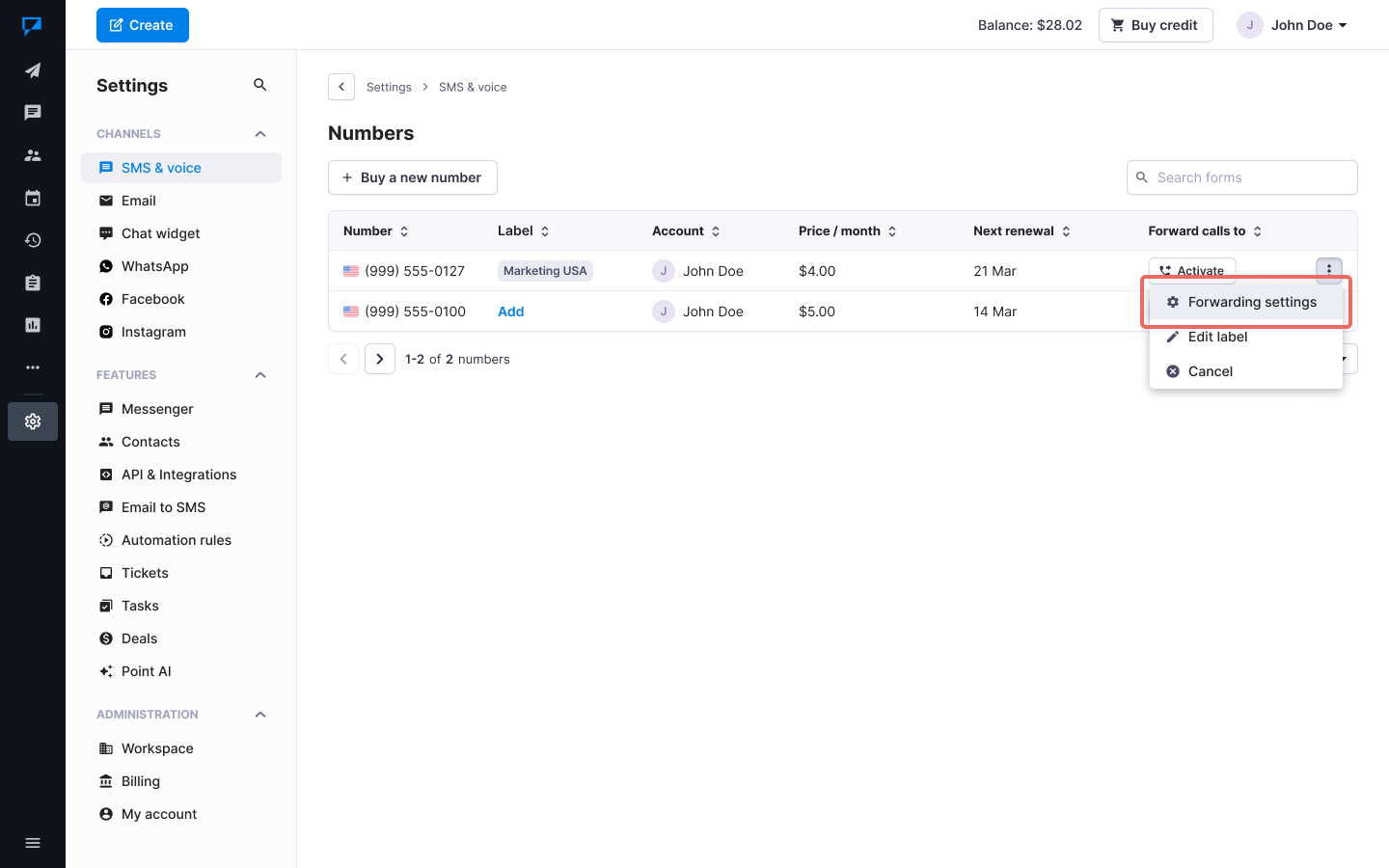
- Go to the Numbers page.
- Find the needed number and click the More icon.
- Select Forwarding settings from the dropdown menu.
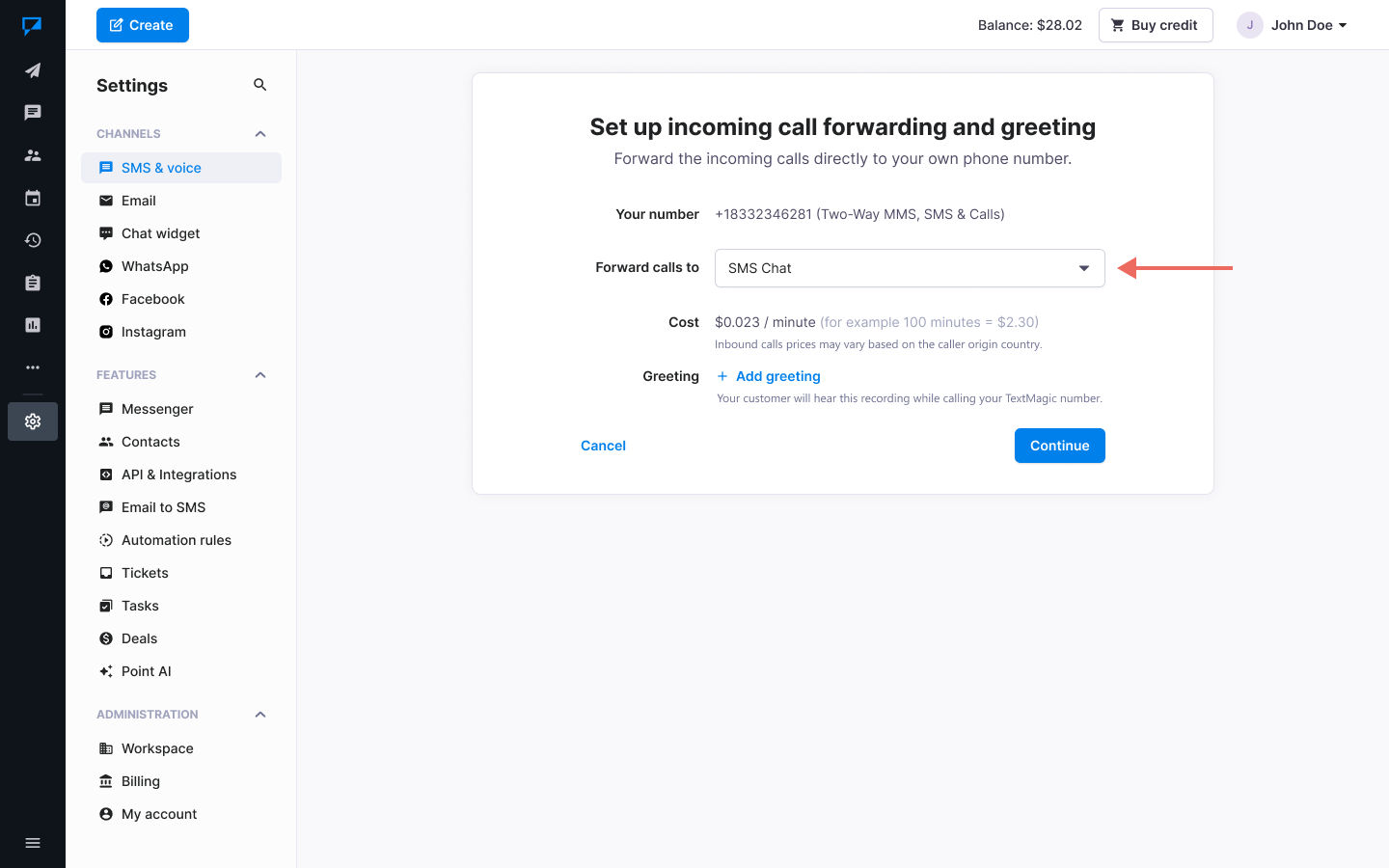
- Next, in the Forward calls to option, select Textmagic Messenger and then click on Continue.
- Go to the Messenger and wait for a new incoming call.
Edit your Caller ID
- Make sure you have a voice-enabled Textmagic number on your account.
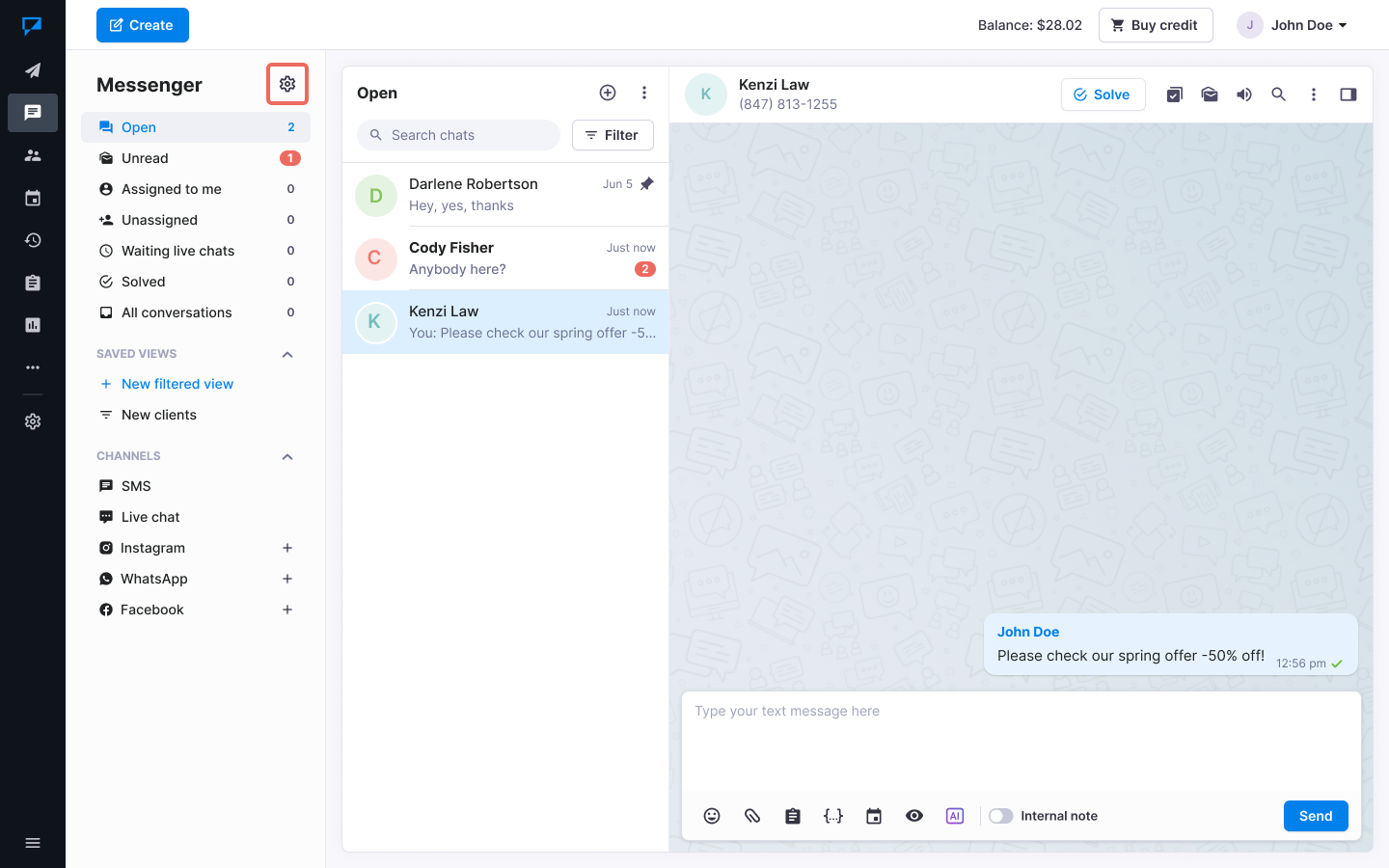
- Go to the Messenger.
- Click More -> Settings.
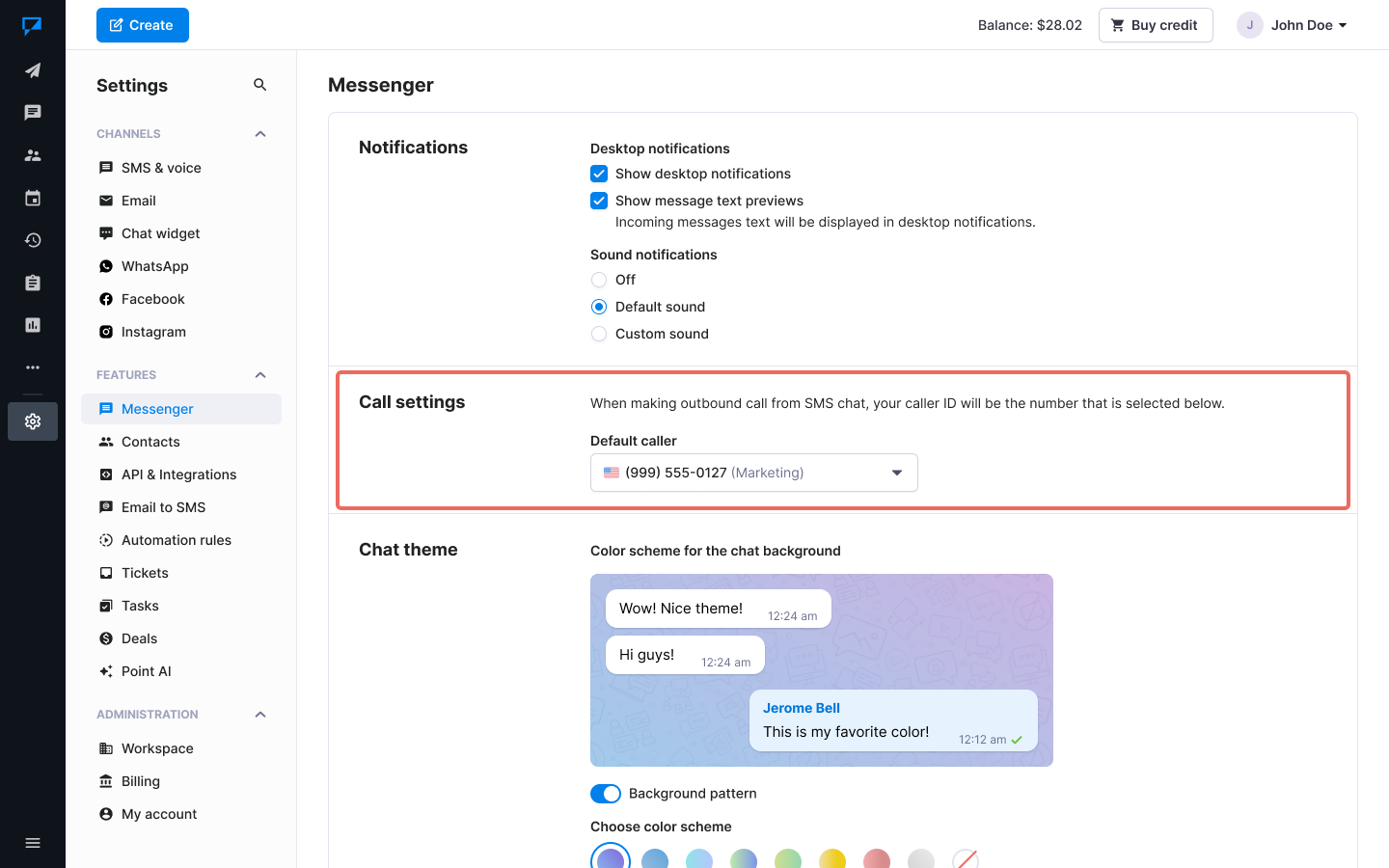
- Select the number that you wish your calls to originate from.
View call history
All your outbound and inbound calls will be displayed on the History page. You can review the length, cost, time of day and other information about every call made or received. Just click on the correct row and view the call details.
Navigating and managing chats in Messenger
In the Messenger section, you can organize and manage conversations using folders like:
- Open – Active chats needing attention
- Unread – Messages you haven’t seen yet
- Assigned to me / Unassigned – Team-specific sorting
- Solved – Completed or archived conversations
- All chats – Full chat history
You can filter chats by clicking the Filter button next to the search bar. Filters include:
- Status, Chat type, Channel, Tags, Assignee
- Satisfaction, Created date, Last updated, Last reply status, and more.
Click the three-dot menu (⋮) above the chat list to:
- Select chats – Manually choose chats for bulk actions, such as read, delete and solve
- Mark all as read – Clear unread badges
- Mark all read chats as solved – Instantly archive all read chats
Single chat management
In any open conversation, click the three-dot menu (⋮) in the top-right corner of the chat window to access more actions:
- Search this chat – Look up specific messages
- Select messages – Choose messages for actions or export
- Date filter – View messages from a specific time range
- Download transcript – Save the entire chat history
- Sender settings – Customize sender preferences
- Block / Unsubscribe / Delete chat – Manage or remove contacts as needed