
Chat widget for all communication
Creating a new chat widget
Textmagic chat widget brings together live chat, email, text messaging, calls, WhatsApp, Facebook, and Instagram in one place.
With the Textmagic Messenger, you can manage calls and two-way conversations started through supported messaging channels from a single screen. This makes it easier to handle customer communication without switching between platforms.
To create a chat widget, navigate to Messenger -> Messenger settings -> Chat widget. Next, click New widget, provide a name, and click Create.
Chat widget editor
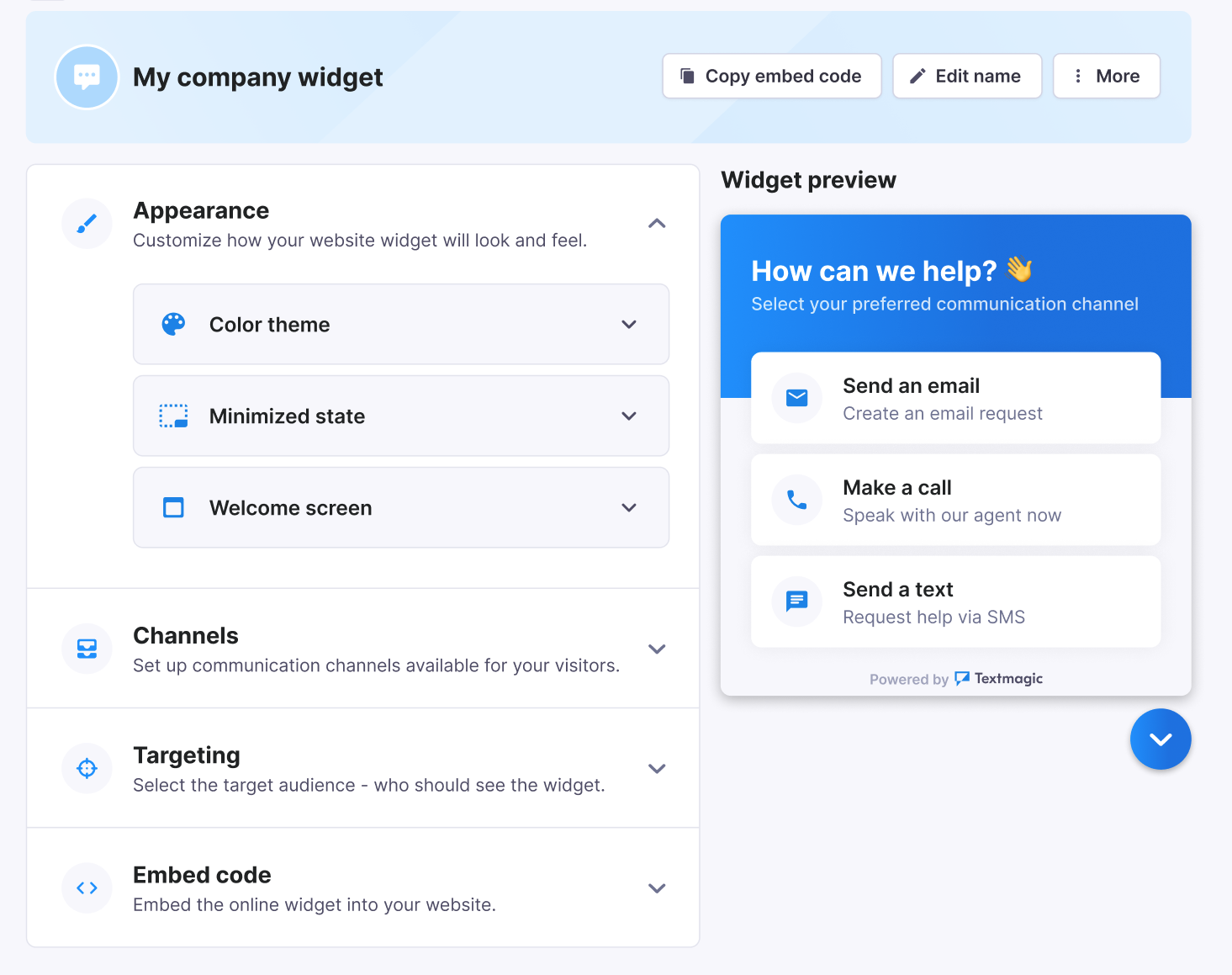
The chat widget editor with a preview lets you customize your widget to fit your business needs. You can change its appearance, choose which communication channels are available, define targeting rules, and get the code needed to add the widget to your website.
To access the widget editor, go to the Chat widget and select the widget you want to modify.
Appearance
The Appearance section lets you customize how your widget looks and what visitors see when they open it.
- Color theme: Choose colors for your widget’s background and buttons. Consider using your brand’s primary color for consistency across your digital platforms.
- Minimized state: Choose what website visitors see when the widget is minimized, including its icon and button text.
- Welcome screen: Add a greeting and message that visitors see when they open the widget.
Channels
The Textmagic chat widget supports multiple communication channels, including live chat, email, text messaging, calls, WhatsApp, Facebook, and Instagram.
The Channels section lets you choose which communication methods are available to your website visitors. Use the toggle next to a channel to enable or disable it. You can also expand each channel to configure its available settings.
Live chat
Live chat lets visitors start a real-time conversation with your team directly from your website. Live chat messages appear in your Textmagic Messenger.
You can configure:
- Welcome screen: Customize the initial message visitors see when they open live chat.
- Pre-chat form: Choose what information visitors need to provide before starting a conversation.
- Queue settings: Configure how visitors are handled when your team is busy or unavailable.
- Satisfaction survey: Collect feedback from visitors after their chat ends.
- Offline mode: Configure what happens when live chat is unavailable or your team is offline.
- Additional settings: Configure additional options for the live chat channel.
Email lets visitors send an email request to your business directly through the widget.
You can configure:
- Welcome screen: Customize the initial message visitors see when they select the email option.
- Form fields: Choose which fields visitors need to complete before submitting their message.
- Success screen: Customize the confirmation shown after an email request is successfully submitted.
- Associated email: Select the email address associated with this channel.
- Additional settings: Configure additional options for the email channel.
Text message
Text message lets visitors contact your business via SMS from your website. SMS conversations can then be managed in your Textmagic Messenger.
You can configure:
- Welcome screen: Customize the initial message visitors see when they select the text message option.
- Message us screen: Customize the screen visitors use to start an SMS conversation.
- Numbers and countries: Configure which numbers are available to visitors based on their country.
To support two-way SMS conversations, use an appropriate Textmagic virtual number. You can configure which number visitors see depending on their country and define a default option where needed.
Call
Call lets visitors call your business using a phone number displayed in the widget.
Depending on your number settings, incoming calls can be handled according to your configured call setup.
You can configure:
- Welcome screen: Customize the initial message visitors see when they select the call option.
- Call us screen: Choose the title, description, and button visitors see before making a call.
- Numbers and countries: Select the number visitors can use to call your business and configure the default number shown when needed.
WhatsApp lets visitors start a WhatsApp conversation with your business directly from the widget. Messages from the connected channel can be managed through Textmagic Messenger.
You can configure:
- Welcome screen: Customize the initial message visitors see when they select WhatsApp.
- Message us on WhatsApp: Customize the title, description, and button visitors see before starting a conversation.
- WhatsApp number: Select the WhatsApp number connected to Textmagic or configure the number visitors use to contact you.
Facebook lets visitors connect with your business through your Facebook page from the widget.
You can configure:
- Welcome screen: Customize the initial message visitors see when they select Facebook.
- Message us screen: Customize the screen visitors see before starting a conversation.
- Facebook page: Select the Facebook page associated with this channel.
Instagram lets visitors connect with your business through your Instagram account from the widget.
You can configure:
- Welcome screen: Customize the initial message visitors see when they select Instagram.
- Message us screen: Customize the screen visitors see before starting a conversation.
- Instagram account: Select the Instagram account associated with this channel.
Targeting
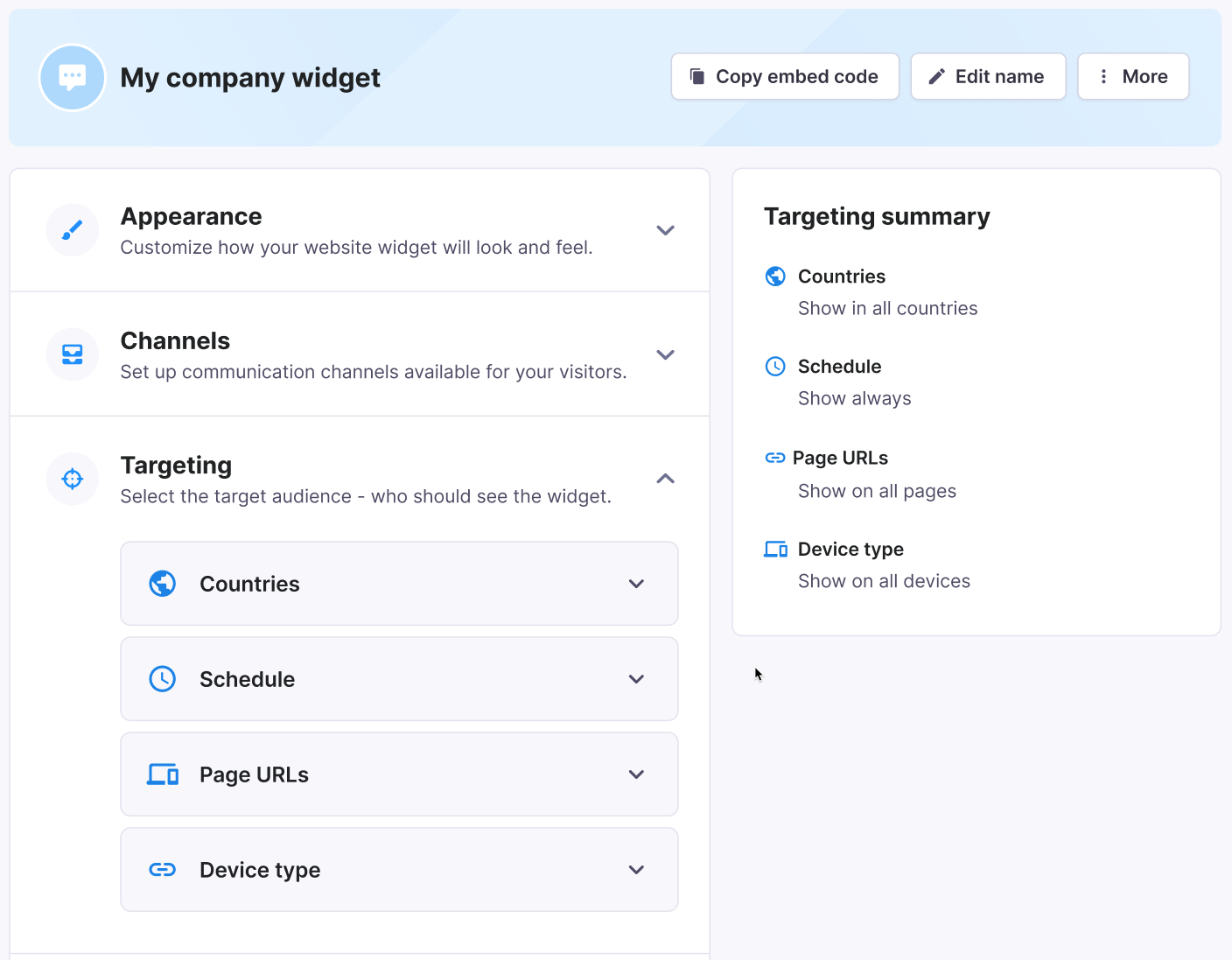
Targeting lets you control who sees your Textmagic chat widget and when it appears. This helps you display the widget to the right visitors at the right time.
You can configure:
- Countries: Show the widget in all countries, hide it in selected countries, or display it only in specific countries.
- Schedule: Control when the widget is visible by selecting specific days and times.
- Page URLs: Choose whether the widget appears on all website pages or only on selected URLs.
- Device type: Choose whether the widget appears on desktop, mobile, or both.
After configuring your widget, make sure to save your changes.
Embed code
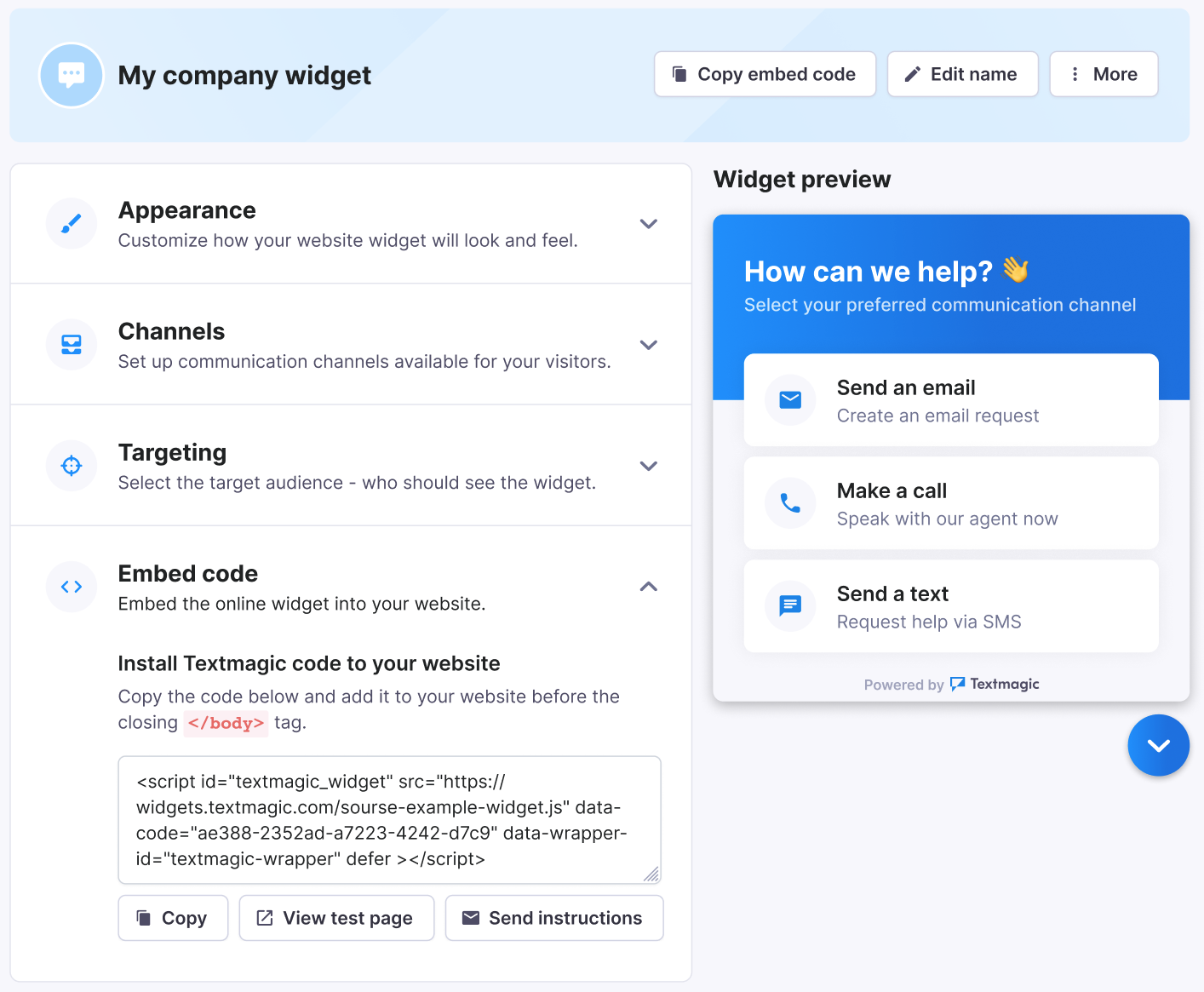
After customizing the appearance, channels, and targeting for your Textmagic chat widget, the final step is to add it to your website.
You can Copy code, View test page, or Send instructions to your developer.
FAQ
Why use the Textmagic chat widget?
The Textmagic chat widget gives website visitors several ways to contact your business from one place.
- Offer multiple communication channels: Let visitors choose between live chat, email, text messaging, calls, WhatsApp, Facebook, and Instagram, depending on the channels you enable.
- Make it easier to start a conversation: Visitors can contact your business directly from your website instead of searching for a separate phone number, email address, or social media account.
- Capture leads: Forms and channel settings can help you collect visitor information and continue the conversation through Textmagic.
Can I choose which communication channels are available on my widget?
Yes. In the Channels section of the widget editor, use the toggle next to each channel to enable or disable it. You can also expand a channel to configure its available settings.
Which channels can I add to the widget?
You can configure Live chat, Email, Text message, Call, WhatsApp, Facebook, and Instagram. Availability and setup requirements may differ depending on the channel.
How do I target specific audiences with my widget?
In the Targeting section, you can control widget visibility based on countries, schedule, page URLs, and device type.
Can I edit the widget after it has been embedded?
Yes. You can return to the widget editor at any time and update its settings. Save your changes when you’re finished.
Can I test how the widget looks before going live?
Yes. After setting up your widget, use View test page in the Embed code section to preview the widget before adding it to your live website.
How do I embed the chat widget into my website?
Go to the Embed code section, copy the provided code, and add it to your website’s HTML before the closing </body> tag.
What should I do if I want someone else to embed the widget for me?
Use Send instructions in the Embed code section to send the implementation instructions to your web developer or IT team.