
Set up and manage Email to SMS
Email to SMS lets you send and receive text messages directly from your email inbox. It is useful for sending SMS without logging in to Textmagic, forwarding important email notifications as text messages, and integrating SMS into existing email workflows.
Add allowed emails
Allowed emails are email addresses that can send Email to SMS messages using your Textmagic account.
- Go to Services → Email to SMS.
- Click Add allowed emails.
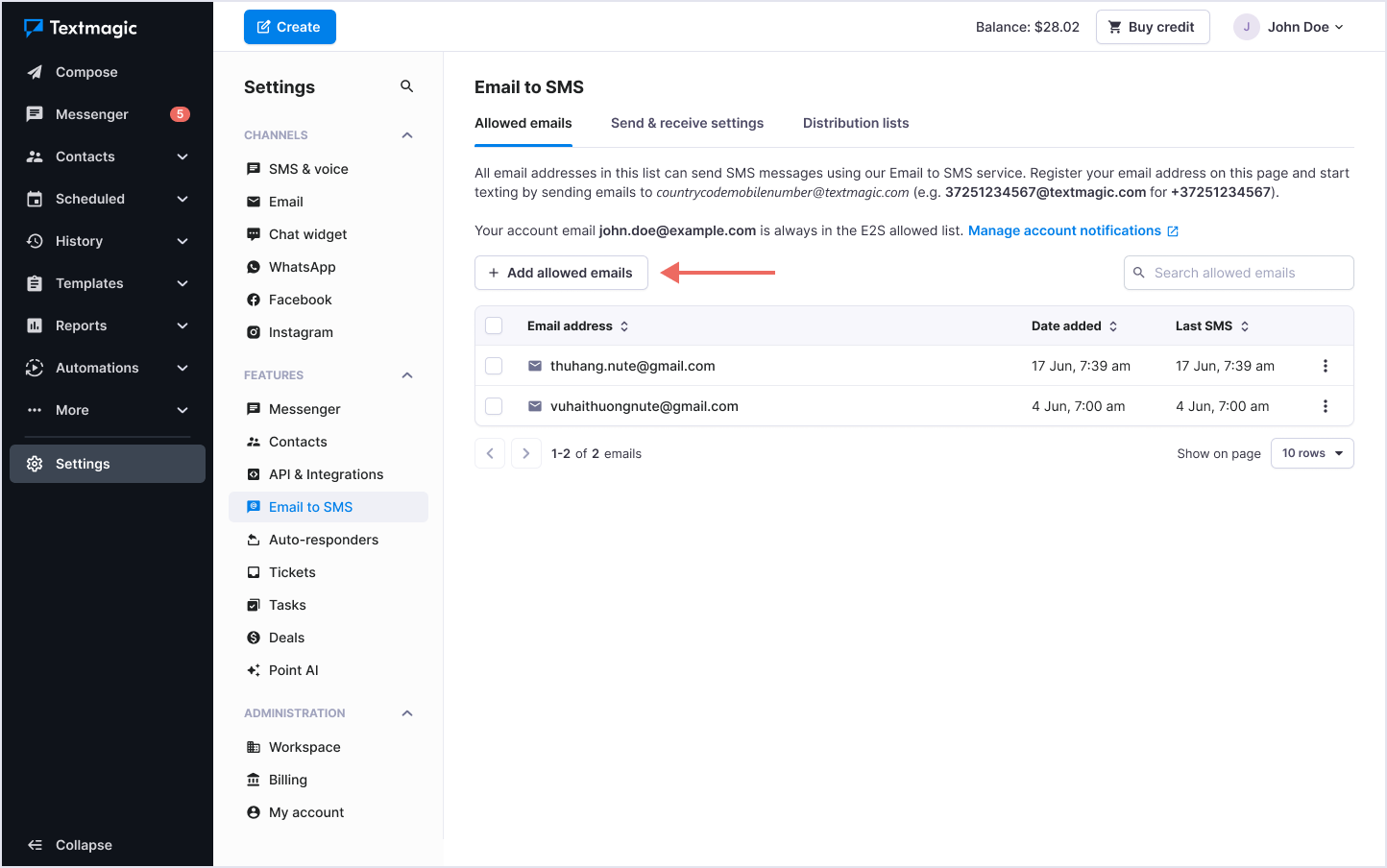
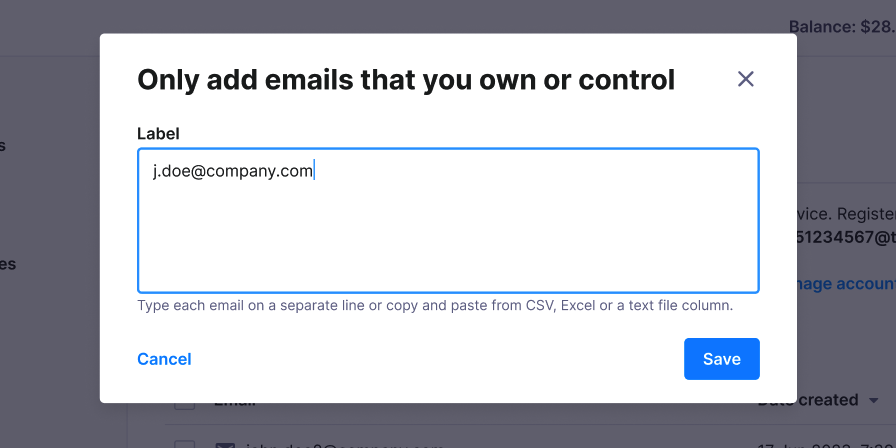
- Add email addresses that you own or control, one per line.
Your email addresses will appear in the Allowed emails list, where you can see when each address was added and when the last message was sent.
Edit or delete allowed emails
- Go to Services → Email to SMS.
- Find the email address you want to change → Click the More icon.
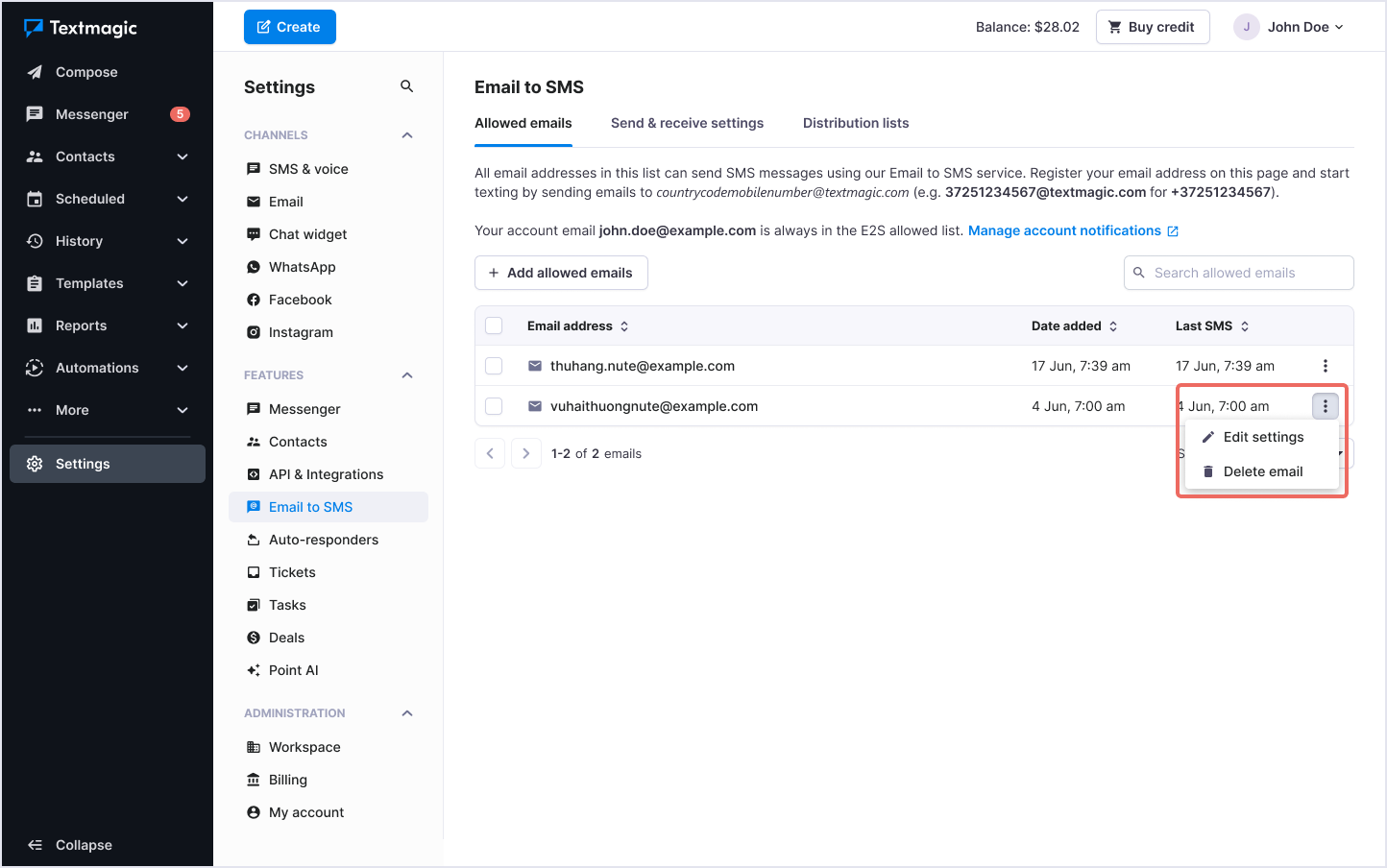
- Edit the settings or delete the email address. If editing, click Save.
Configure Send & Receive settings
Send & Receive settings let you control which parts of an email are converted to SMS, set the maximum message length, and manage additional content and delivery settings.
- Go to Services → Email to SMS → Select Send & Receive settings.
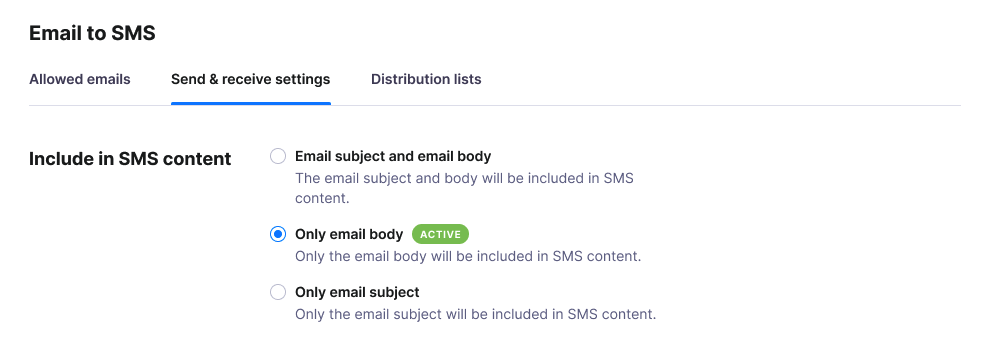
- Under Include in SMS content, choose what to include in your text messages:
• Email subject and email body
• Only email body
• Only email subject
- Set the maximum length of your Email to SMS messages.Important to know: The cost of a text message depends on its length. Longer messages may consist of multiple SMS parts and cost more. Learn about maximum SMS length.

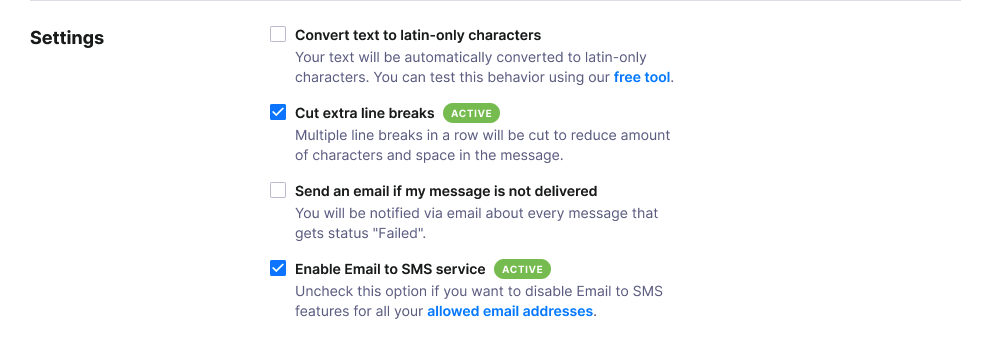
- Manage additional settings:
• Convert text to Latin-only characters.
• Cut extra line breaks.
• Get email notifications about Email to SMS delivery failures.
• Enable or disable the Email to SMS service.
- Add custom cut phrases. Text after a specified phrase will be automatically removed from the SMS, including the phrase itself.

- Click Save changes.
Once Email to SMS is configured, learn how to send and receive SMS using your email address.