
Textmagic and Zoho crm integration guide
- Overview
- What the integration does
- How the data moves
- Before you start
- How to set up the Zoho CRM integration
- Managing your integration
- Using the Zoho CRM integration with Textmagic Automations
- Common use cases
- Best practices
- Frequently asked questions
Overview
The Zoho CRM integration connects your Zoho CRM account to Textmagic. Your Zoho contacts, and your leads if you choose, sync into Textmagic. Zoho CRM events can start Textmagic automations that send messages and create or update records in Zoho CRM.
What the integration does
With the Zoho CRM integration, you can:
- Import your Zoho CRM contacts into Textmagic, and your leads if you choose
- Keep them updated automatically when records are created or changed in Zoho CRM
- Map standard and custom Zoho CRM fields to Textmagic contact fields
- Route records into Textmagic lists with rules
- Start automations from 16 Zoho CRM triggers
- Pause a flow until a Zoho CRM event happens
- Create and update records in Zoho CRM with 11 automation actions
How the data moves
The integration has two parts that work independently, and they move data in different directions.
Contacts, and leads if you choose, flow into Textmagic and stay up to date. Nothing flows back.
A Zoho event can start a flow. A flow step can create, update, or log something in Zoho on purpose.
In short: Textmagic never changes a Zoho record on its own. It only writes to Zoho when an automation step you built tells it to.
Before you start
Setup takes about five minutes. Make sure you have:
- An active Textmagic account
- A Zoho CRM account where you are an admin, or have permission to authorize integrations
- Depending on how you plan to message your contacts:
- For SMS: a verified Textmagic number or Sender ID for your country. Learn more about SMS numbers: https://support.textmagic.com/article/textmagic-dedicated-virtual-numbers/
- For email: a verified sending domain configured in your Textmagic account. Learn more about email sending: https://support.textmagic.com/article/connect-your-email-domain/
Marketing messages can only go to contacts who agreed to receive them. If you record consent in Zoho CRM, map that field in Step 2 so you can filter on it in Textmagic. Rules changed in 2026: in the US, the FCC’s revised opt-out rules take effect on November 25, 2026; in the UK, PECR fines rose to up to £17.5 million or 4% of global turnover in February 2026; in Australia, texts sent under an unregistered brand-name Sender ID show as “Unverified” since July 1, 2026 (see ACMA’s new SMS Sender ID rules).
How to set up the Zoho CRM integration
Go to Settings → Integrations, find the Zoho CRM card, and click Connect. The setup wizard has four steps. You can leave partway through and continue later. Start over takes you back to the beginning.
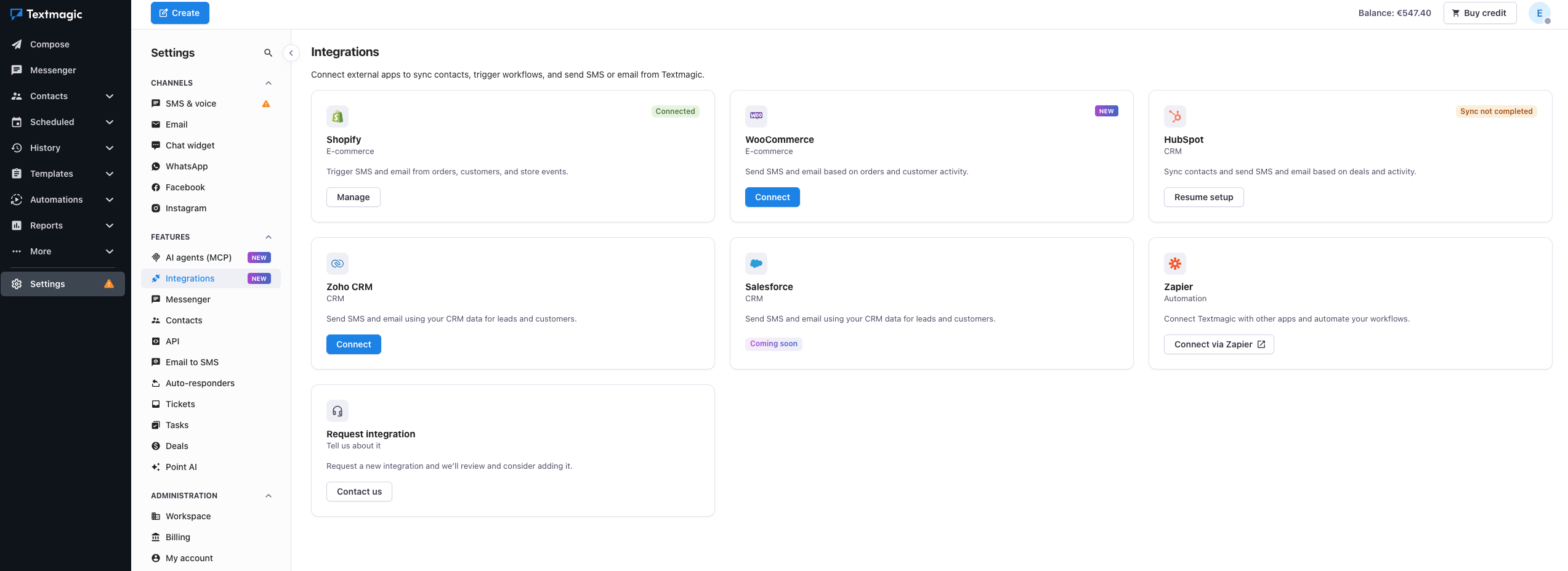
Step 1: Connect your Zoho CRM account
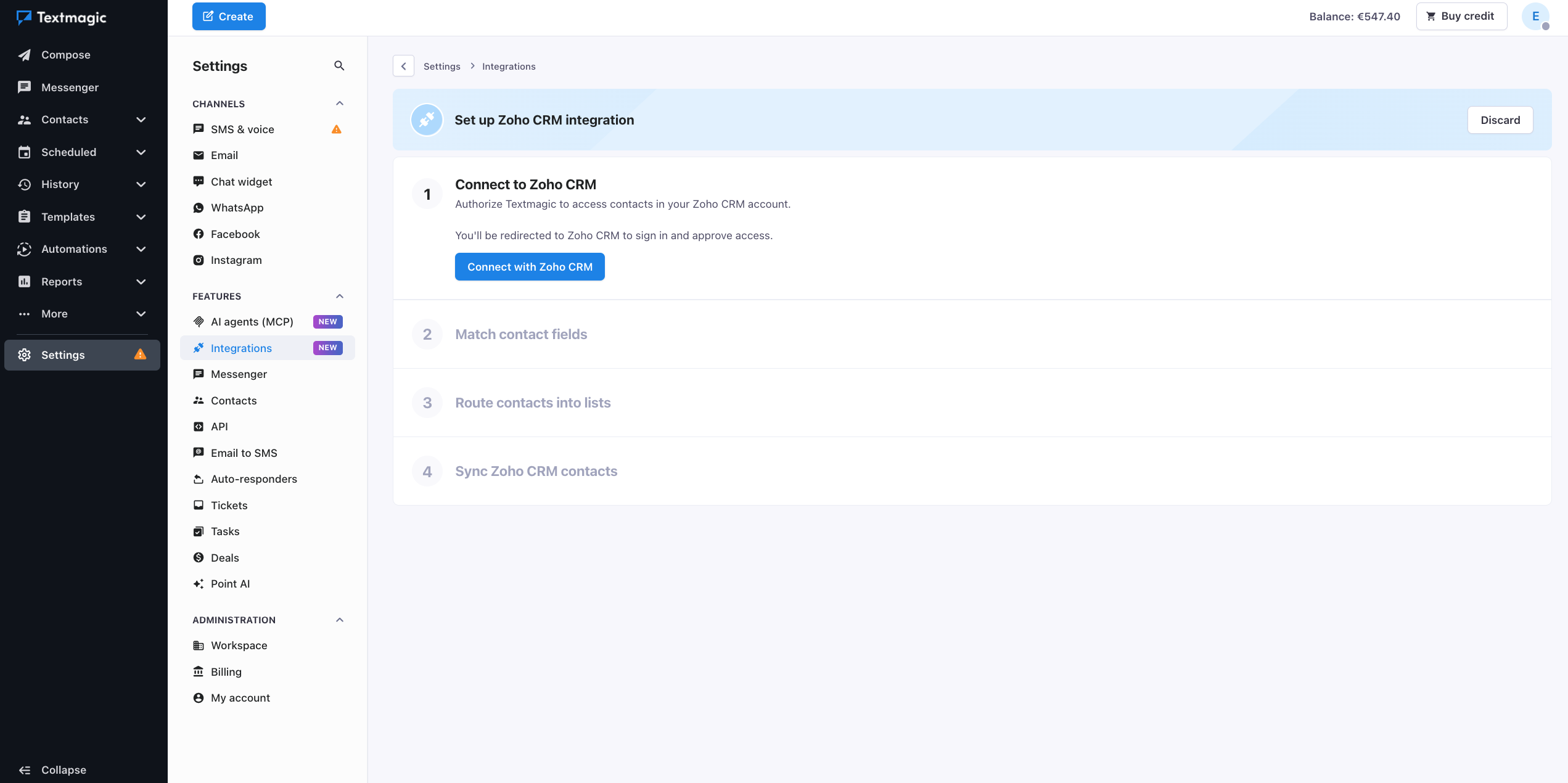
Click Connect with Zoho CRM. You’ll be redirected to Zoho CRM to sign in and approve access. There’s nothing to configure manually: the connection completes automatically once you approve.
Step 2: Match contact fields
The mapping table lists every standard and custom Zoho CRM contact field on the left and a Textmagic field on the right. These fields are mapped by default:
| Zoho CRM contact field | Type | Maps to |
|---|---|---|
| First Name | Text | First Name |
| Last Name | Text | Last Name |
| Phone | Phone | Phone |
Phone and Email are marked Default. All other fields, including Mobile, Home Phone, and Secondary Email, are set to Do not sync. Leave them that way, or map them to a Textmagic custom field to use in personalized messages and segments.
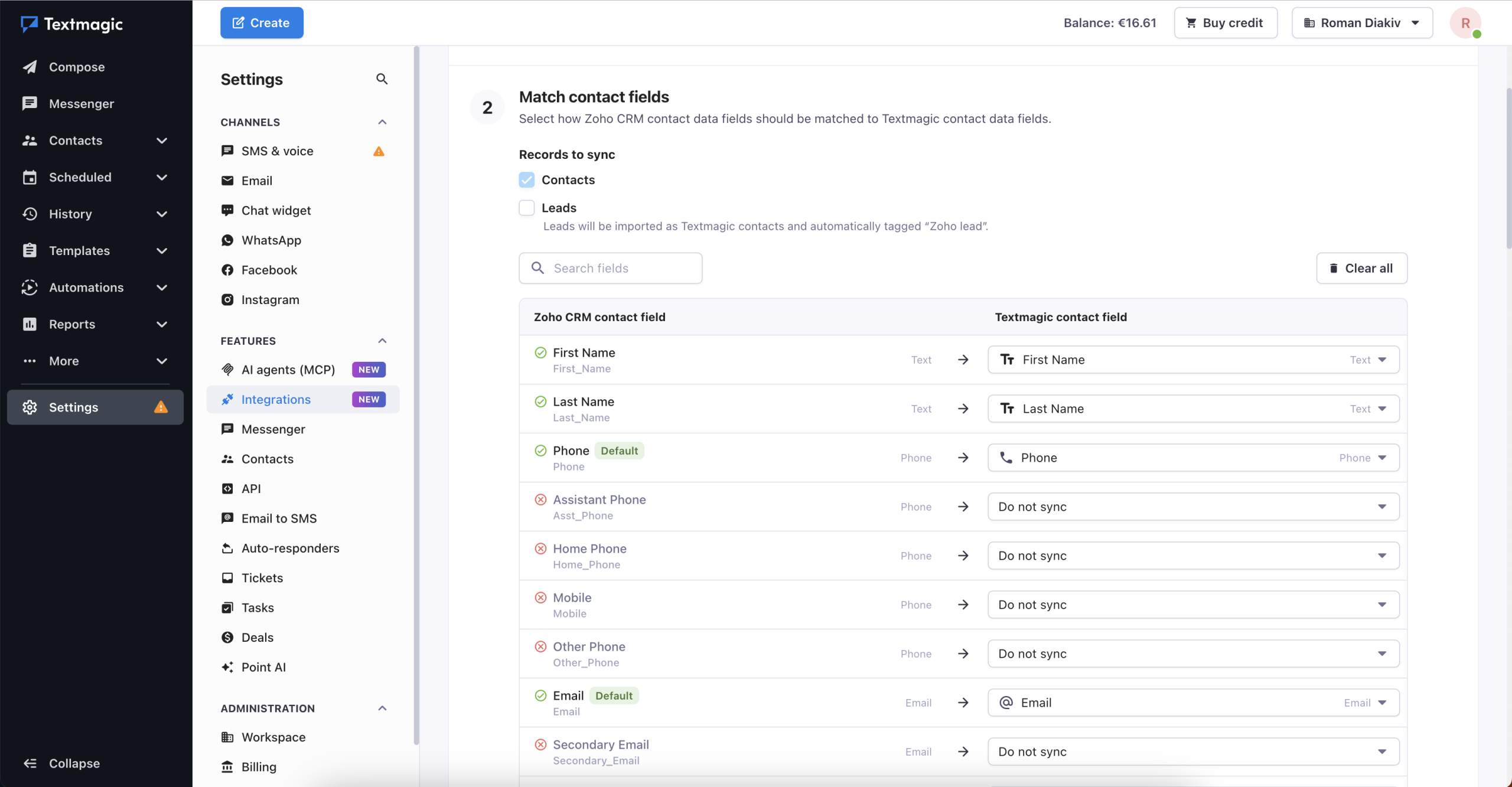
Syncing Zoho leads
In Zoho CRM, Leads are new inquiries and Contacts are people your team already works with. Contacts always sync. Leads are off by default: to sync them, tick Leads under Records to sync.
- Leads have their own field mapping. First Name, Last Name, Email, and Phone are preselected.
- Leads are imported as Textmagic contacts with the tag Zoho lead.
- When you convert a lead in Zoho CRM, it stays the same contact in Textmagic and the Zoho lead tag is removed.
- If your Zoho CRM user can’t access the Leads module, leads are skipped and contacts still sync.
Click Continue.
Step 3: Choose contact lists
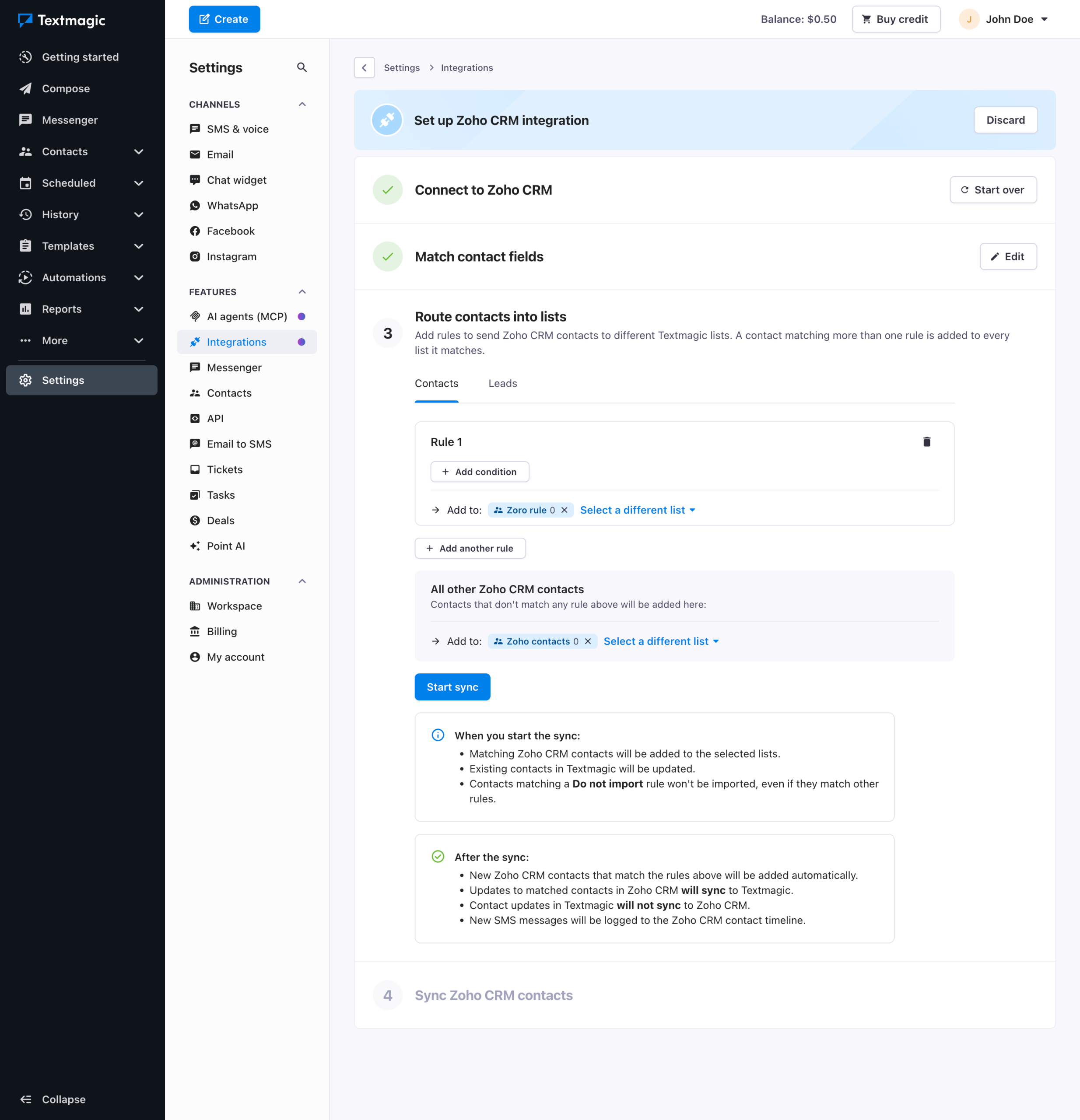
Choose the Textmagic lists your Zoho CRM records go to. You can add rules, for example:
- Lead Source is Website → a list called “Website inquiries”
- Mailing Country is United Kingdom → a list called “UK customers”
Records that match no rule go to the list you choose under All other Zoho CRM contacts, or you can choose not to import them. A record that matches several rules is added to every matching list. A Do not import rule keeps people out even if they match other rules.
Leads have their own tab with separate rules and a separate default list, so a “thanks for your inquiry” text never goes to someone who’s already a customer. If you don’t choose a default list for leads, Textmagic creates one called Zoho CRM leads followed by your Zoho organization ID.
When you start the sync:
- Matching Zoho CRM records are added to the lists you chose.
- Records that already exist in Textmagic are updated with the mapped fields.
- Records with neither a phone number nor an email are skipped.
After the sync:
- New Zoho CRM records are added to Textmagic automatically.
- Updates in Zoho CRM sync to Textmagic.
- Updates made in Textmagic do not sync back to Zoho CRM. Textmagic writes to Zoho CRM only through Zoho CRM actions in your automations.
Click Start sync.
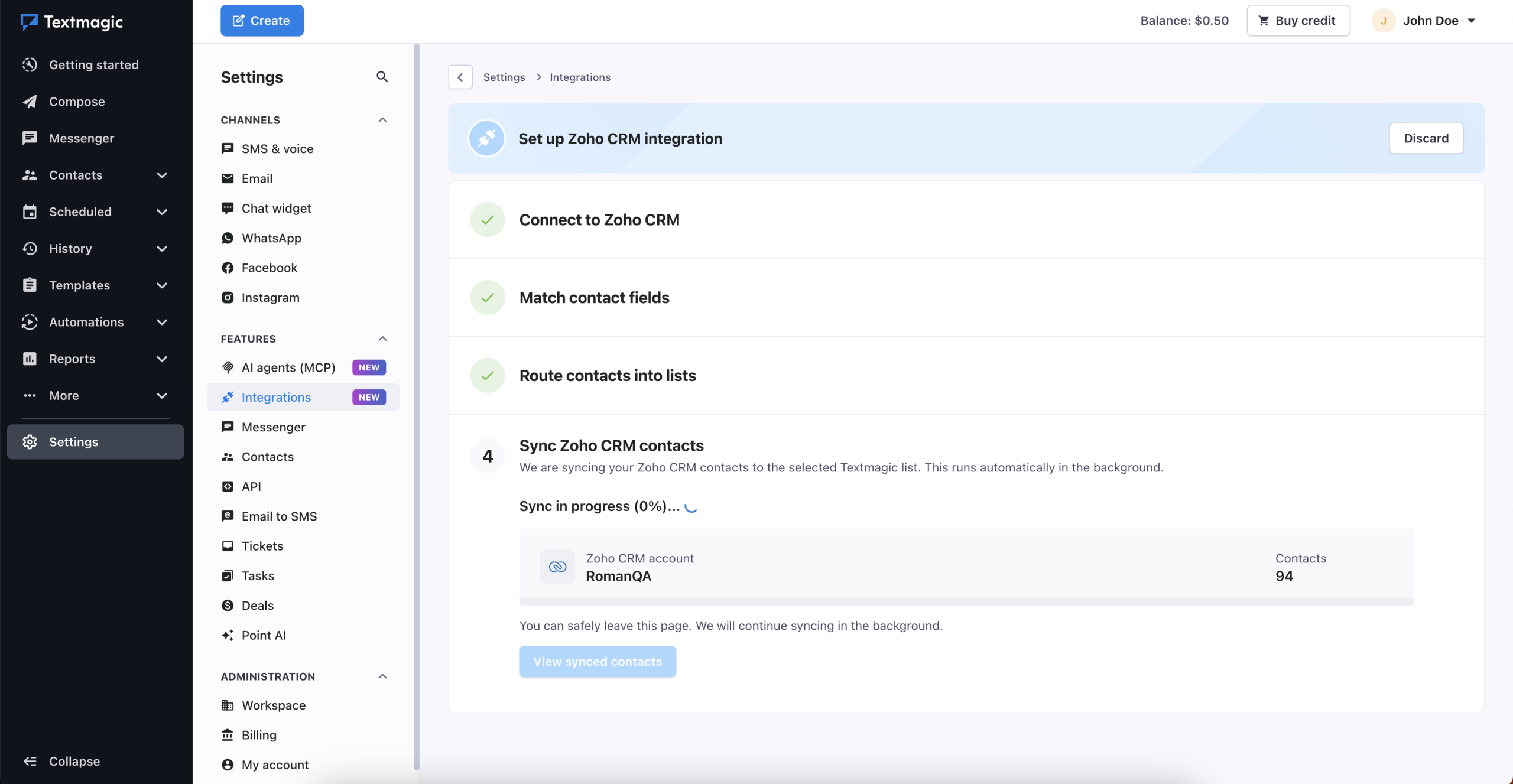
Step 4: Sync Zoho CRM records
The first sync runs in the background, and you can safely leave the page. Textmagic shows the progress as a percentage and the number of records being synced, with contacts and leads counted together. When the sync is complete, click View synced contacts. Synced contacts show Zoho CRM as their source.
Managing your integration
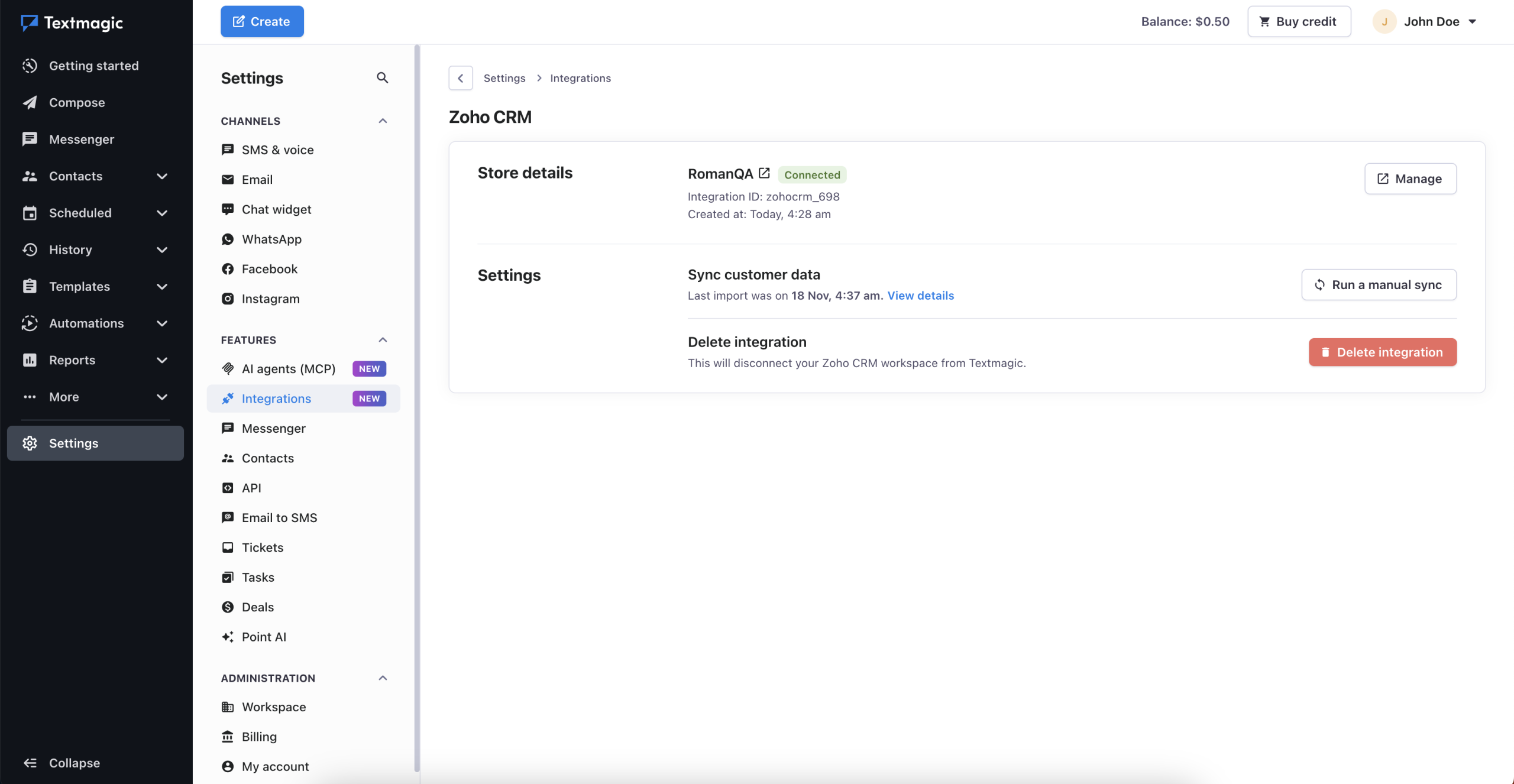
Go to Settings → Integrations → Zoho CRM to see your Zoho CRM account name, the integration ID, and the date the integration was created. From there, you can:
- Run a manual sync. It updates existing contacts and imports records added since the last sync.
- See the date of the last import and open its details.
- Disconnect Zoho CRM with Delete integration.
Textmagic refreshes the connection to Zoho CRM automatically, so you don’t need to sign in again.
Using the Zoho CRM integration with Textmagic Automations
Once connected, Zoho CRM appears in the automation builder as triggers, as events in Wait until event happens, and as actions. You can build a flow step by step, or describe it in your own words with Build with AI, which supports Zoho CRM triggers and actions.
Goal: Text every new website lead right away. If the lead isn’t updated in Zoho CRM within an hour, create a call-back task.
- Go to Automations and click Create automation.
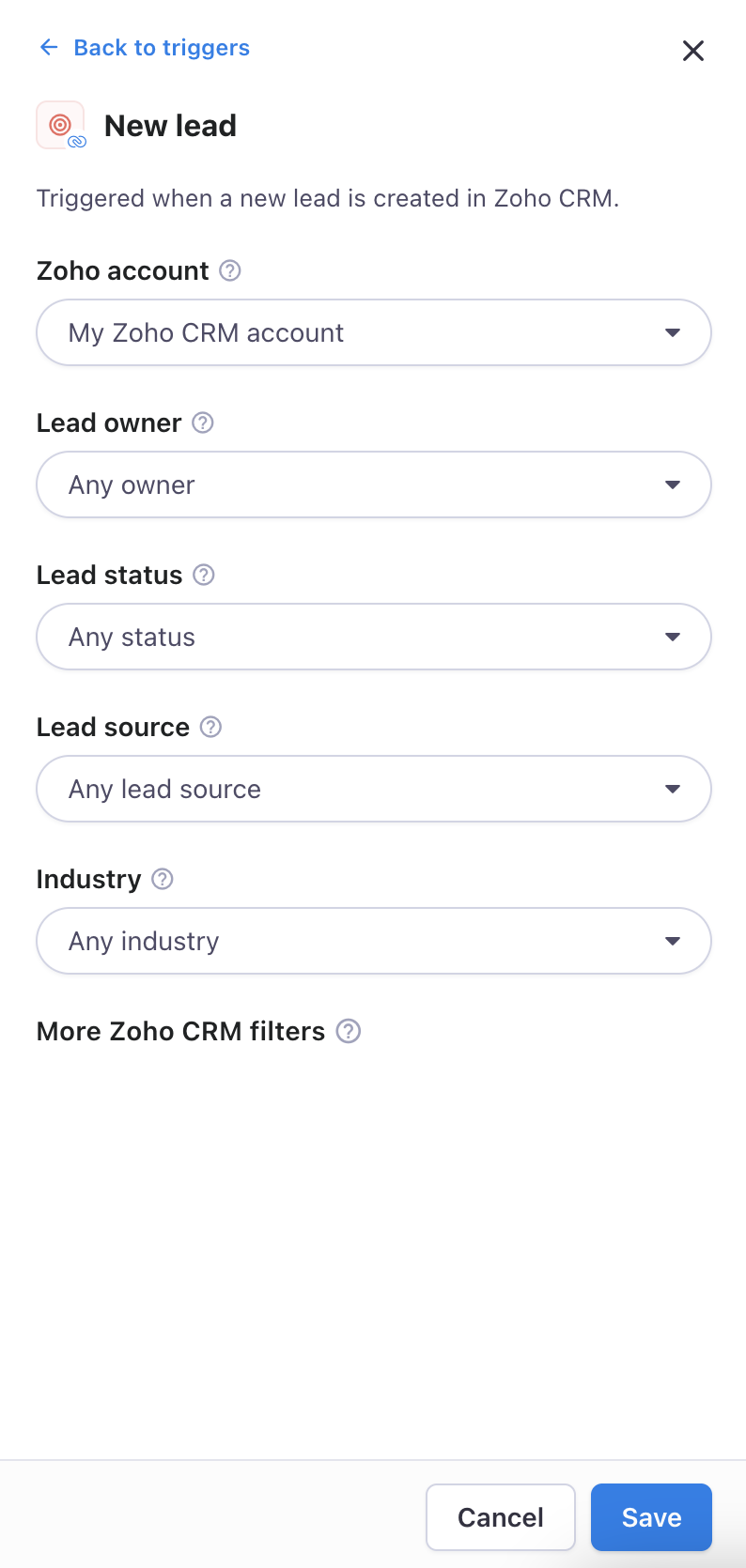
- Select New lead from the Zoho CRM section.
- In the Lead Source filter, select the value your web form sets, for example Website. Click Save.
- Click Add next step, select Send SMS, and write your message, for example: “Hi [first name], thanks for contacting [company name]. A member of our team will call you within the hour.”
- Click Add next step and select Wait until event happens from the Rules section. Choose Lead property updated from the Zoho CRM category and set the wait time to 1 hour.
- On the No branch, click Add next step and select Create task from the Zoho CRM section. Enter a subject, for example “Call back new web lead”, and a due date.
- Leave the Yes branch as Contact exits.
- Click Activate.
Using Zoho CRM triggers in Automations
To use a Zoho CRM trigger, go to Automations, create an automation, and select a trigger from the Zoho CRM section.
| Trigger | Fires when | Ready-made filters |
|---|---|---|
| New contact | A contact is created in Zoho CRM | Owner, Lead Source, Mailing Country |
| Contact property updated | A contact field changes, for example the phone number or owner | None |
| New lead | A lead is created from a web form, an event, or a call | Lead Owner, Lead Status, Lead Source, Industry |
| Lead property updated | A lead’s status, source, owner, or another field changes | None |
| New deal | A deal is created | Owner, Pipeline, Stage, Type, Amount |
| Deal property updated | A deal’s stage or another field changes | None |
| New meeting | A meeting or demo is booked | Host, Related to, Venue, Start time |
| Meeting property updated | A meeting is moved, canceled, or edited | None |
| New case | A customer raises a support case | Case Owner, Status, Priority, Case Origin, Type, Case Reason |
| Case property updated | A case’s status, priority, or another field changes | None |
| New task | A task is assigned to someone on your team | Task Owner, Status, Priority, Due Date |
| Task property updated | A task’s status, due date, or another field changes | None |
| New call | A call is logged or scheduled | Call Type (Inbound, Outbound, Missed), Call Purpose, Call Owner, Call Status |
| Call property updated | A call’s outcome, duration, or time is filled in or changes | None |
| New invoice | An invoice is issued | Invoice Owner, Status, Due Date, Invoice Date |
| Invoice property updated | An invoice’s status, amount, or another field changes | None |
Besides the ready-made filters, every trigger can be filtered by other fields of the record. Text filters are not case-sensitive. The Pipeline filter appears only if your Zoho CRM organization has more than one pipeline.
In Send SMS and Send email steps, you can insert fields from the Zoho CRM record that started the flow as dynamic fields, along with the contact fields you mapped during setup.
Using Zoho CRM events as wait conditions in Rules
The Rules tab contains Time delay, Conditional split, Percentage split, Wait until event happens, and Reply-based split.
Zoho CRM events also work in Wait until event happens, so a flow can pause until, for example, a deal moves to the next stage. Set a wait time: contacts for whom the event happens in time follow the Yes branch, everyone else follows the No branch. Examples:
- New deal → wait 3 days for Deal property updated. If the deal hasn’t changed, create a follow-up task.
- New case → wait 24 hours for Case property updated. If the case hasn’t changed, create a task to check in with the customer.
Zoho CRM sends no event when nothing happens, for example when a due date passes or a deal sits still. For reminders like these, start from a New trigger and add a Time delay.
Zoho CRM actions in Automations
From the Actions tab, you can use the standard Textmagic actions:
- Messages: Send SMS, Send email
- Contacts: Update contact, Add tag, Remove tag, Add to list, Remove from list, Unsubscribe contact
- Tasks and deals: Create new task, Create new deal
With Zoho CRM connected, these actions are also available in the Zoho CRM section:
| Action | What it does |
|---|---|
| Create contact | Adds a new contact, for example when someone texts you who isn’t in your CRM yet. The first name, last name, email, and phone come from the Textmagic contact. If the contact already exists in Zoho CRM, the step is skipped and no duplicate is created. |
| Create lead | Adds a new lead, so a cold inbound text enters your sales funnel |
| Update contact | Writes a value to a contact field, like a new address or a corrected name from a reply |
| Add note to contact | Logs a note on the contact, for example the text of a conversation |
| Create deal | Starts a new deal in the pipeline and stage you choose |
| Move deal to stage | Advances a deal to a different stage |
| Add note to deal | Logs a note on an existing deal |
| Create task | Adds a task for a rep, for example a call-back with a due date |
| Create meeting | Books a meeting, so a time the customer picked by text lands in your rep’s calendar |
| Create case | Opens a support case, for example from a complaint sent by text |
| Convert lead | Turns a lead into a contact and account, and can create a deal in the same step (deal name, pipeline, stage, and close date). You can keep the lead owner or assign another Zoho CRM user. A lead that is already converted is skipped. |
For example, when Deal property updated fires with the stage Closed Won, a flow can send a thank-you SMS and then add a note to the deal confirming the message went out.
Common use cases
- Reply to new inquiries: New lead → send an SMS that a rep will call back shortly.
- Meeting reminders: New meeting → Time delay until the day before → reminder SMS. Add Meeting property updated, so a moved meeting sends the new time.
- Missed call follow-up: New call with Call Type Missed → SMS letting the customer know you tried to reach them.
- Invoice reminders: New invoice → SMS with the amount and payment instructions → Time delay until the due date → friendly reminder.
- Won deals: Deal property updated, stage Closed Won → thank-you SMS → Add note to deal.
- Support case confirmations: New case filtered by Case Origin → SMS confirming the case was received.
- Call-backs from replies: a customer replies to your text → Add note to contact → Create task for the rep to call back.
Best practices
- Map only what you’ll use. A shorter set of fields makes personalized messages and segments easier to build.
- Remember the sync direction. The sync runs only from Zoho CRM to Textmagic. If a rep updates a phone number in Textmagic, make the same change in Zoho CRM, or push it there with the Update contact action.
- Filter your triggers. An automation on any new deal fires constantly. Narrow it to an owner, a pipeline, or a stage.
- Log what matters. If your team uses Zoho CRM as the record of every customer conversation, add an Add note to contact step wherever a reply or outcome should be on file.
- Check your synced lists occasionally. This helps you catch fields that mapped differently than you intended.
Frequently asked questions
Does the integration cost anything extra?
No. Connecting Zoho CRM has no separate fee. Messages sent by your automations are charged to your Textmagic account balance like any other message. See Textmagic billing plans.
Will editing a contact in Textmagic change it in Zoho CRM?
No. The contact sync runs one way, from Zoho CRM to Textmagic, so Zoho CRM is the master record for contact details. To write a change to Zoho CRM, use the Update contact action in an automation.
What happens if a contact already exists in Textmagic?
It is updated with the mapped Zoho CRM fields. A new contact is not created.
Why didn’t some records sync?
Records with neither a phone number nor an email are skipped. Records with an invalid phone number or email fail. Open the details of the last import in Settings → Integrations → Zoho CRM to see failed records, fix them in Zoho CRM, and run a manual sync.
What if a Create contact step finds a contact that already exists in Zoho CRM?
The step is skipped with the message “The contact already exists in Zoho CRM, so a new one was not created.” No duplicate is created.
Does the integration use my Zoho CRM API credits?
Yes, a little. Zoho gives every organization an allowance of API credits for a rolling 24-hour period, shared by all connected apps: 5,000 on the Free edition and more on paid editions, depending on the edition and number of user licenses (see Zoho CRM API limits). If your limit runs out, Textmagic waits and tries again instead of failing.
Why does a trigger or action say “Additional permissions required”?
What you can use depends on your Zoho CRM edition and your Zoho user permissions. For example, the Free edition doesn’t include Cases or Invoices, and a restricted user profile may not have access to Tasks, Calls, or Leads. Ask your Zoho CRM admin to update your permissions, then try again.
Does it work with my Zoho region?
Yes. Zoho keeps each organization in one of its regional data centers, and Textmagic connects to the one where your organization is located.
What happens if I disconnect Zoho CRM?
The sync stops and your Zoho CRM account is disconnected from Textmagic. Contacts that were already synced stay in Textmagic but stop updating.
I already send texts from Zoho CRM through Zapier. Do I need both?
If you move a flow to the native integration, turn off the Zapier zap for the same event. Otherwise, your customers receive the same message twice.