Organize contacts into lists
The easiest way to organize contacts is by grouping them into lists or segments. You can also pin a list or segment for quick access.
It is strictly prohibited to use contact lists that have been purchased or obtained from third parties.
Textmagic offers these default lists:
- Unsubscribed – a list where contacts are moved automatically if they have unsubscribed from your communication.
- Blocked – a list where you can add contacts to block all incoming and outgoing texts with the number.
Create a new list
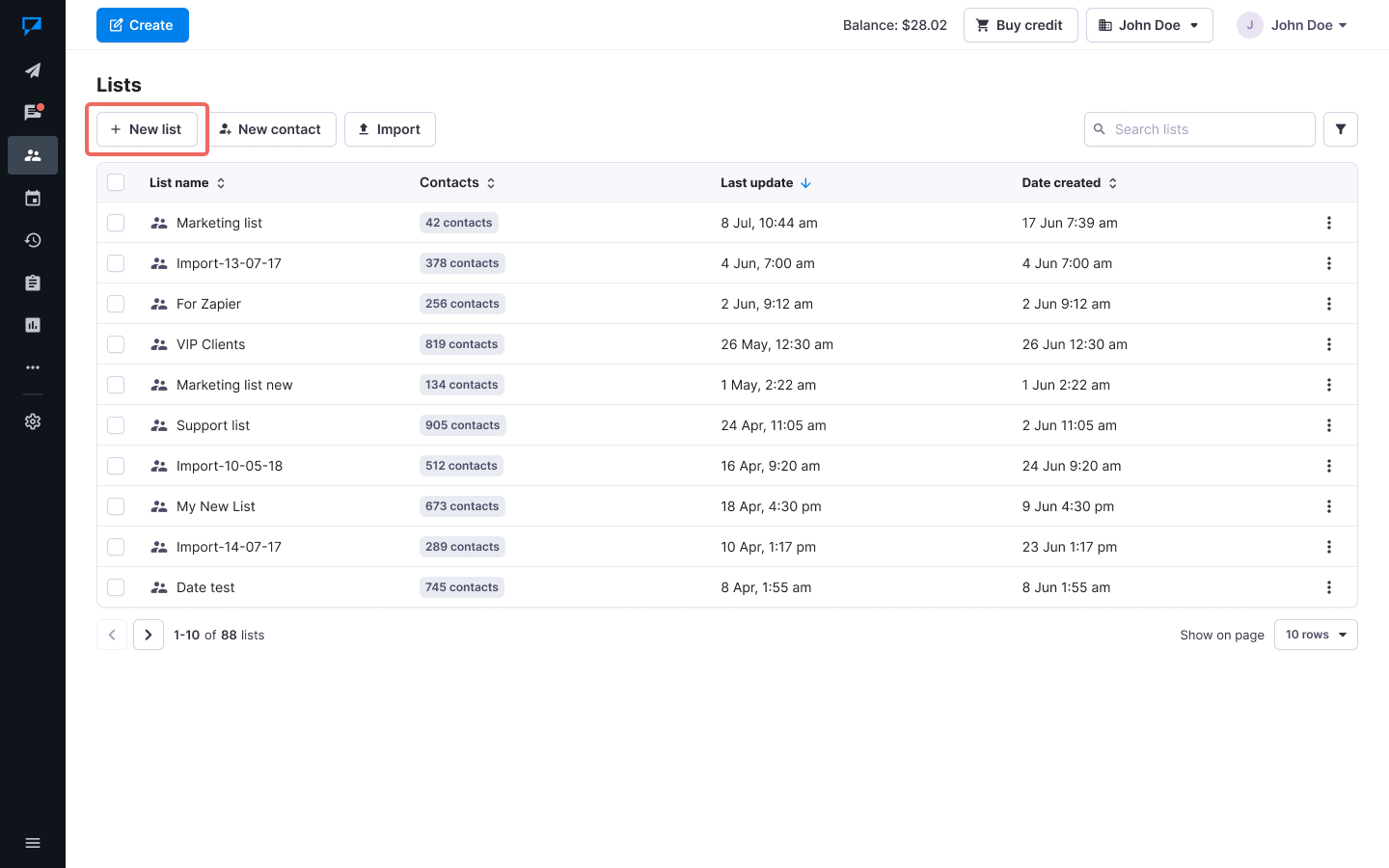
- Navigate to Contacts -> Lists -> Click on the New list.
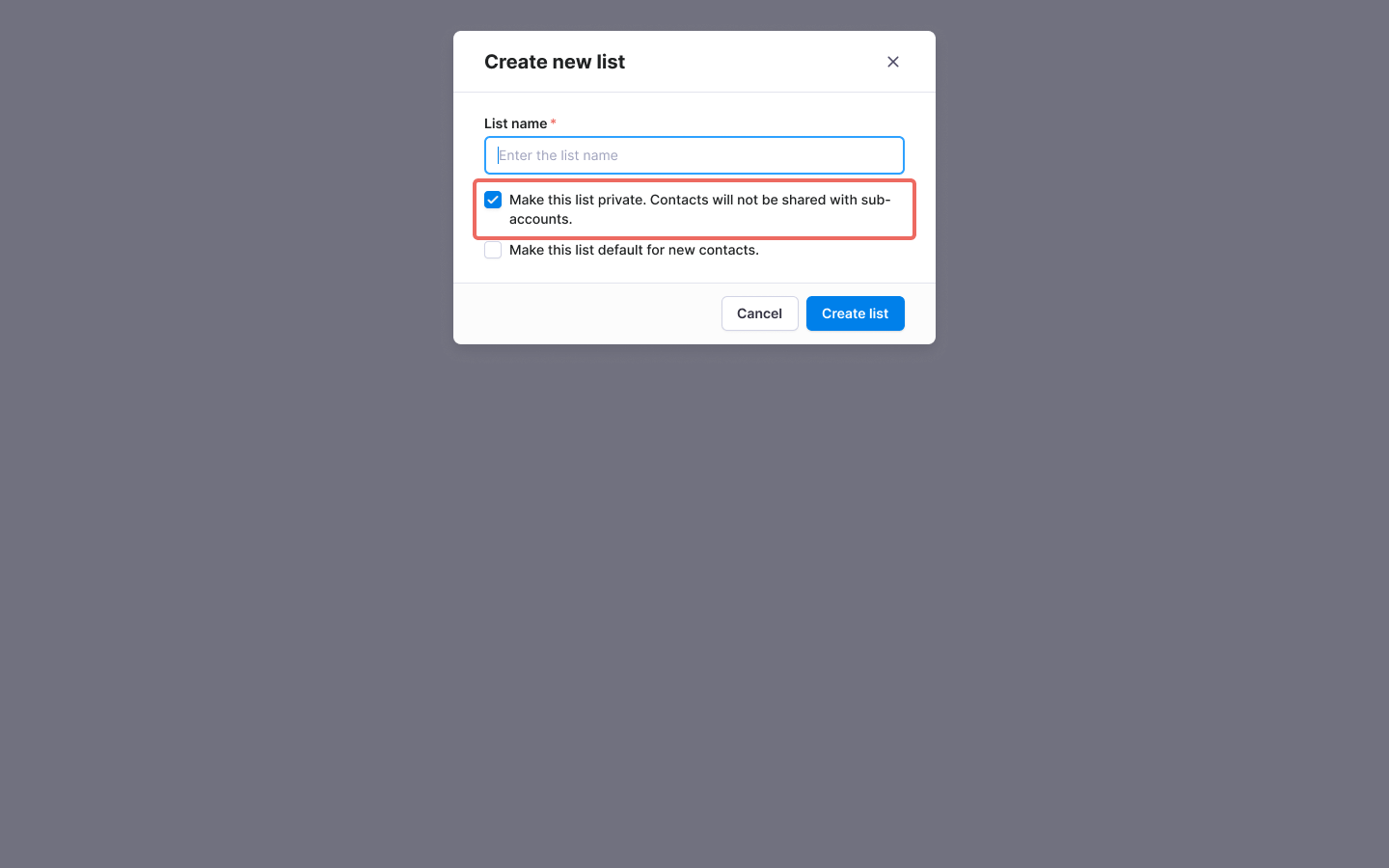
- Enter a list name.
- Make the list private or share it with your sub-accounts (legacy sub-accouts flow). This option can be changed at any time.
- Click Save.
- You can import multiple contacts to your list or add them one-by-one. Learn how to Import contacts from a .CSV or Excel file or add contacts one-by-one.
List features overview
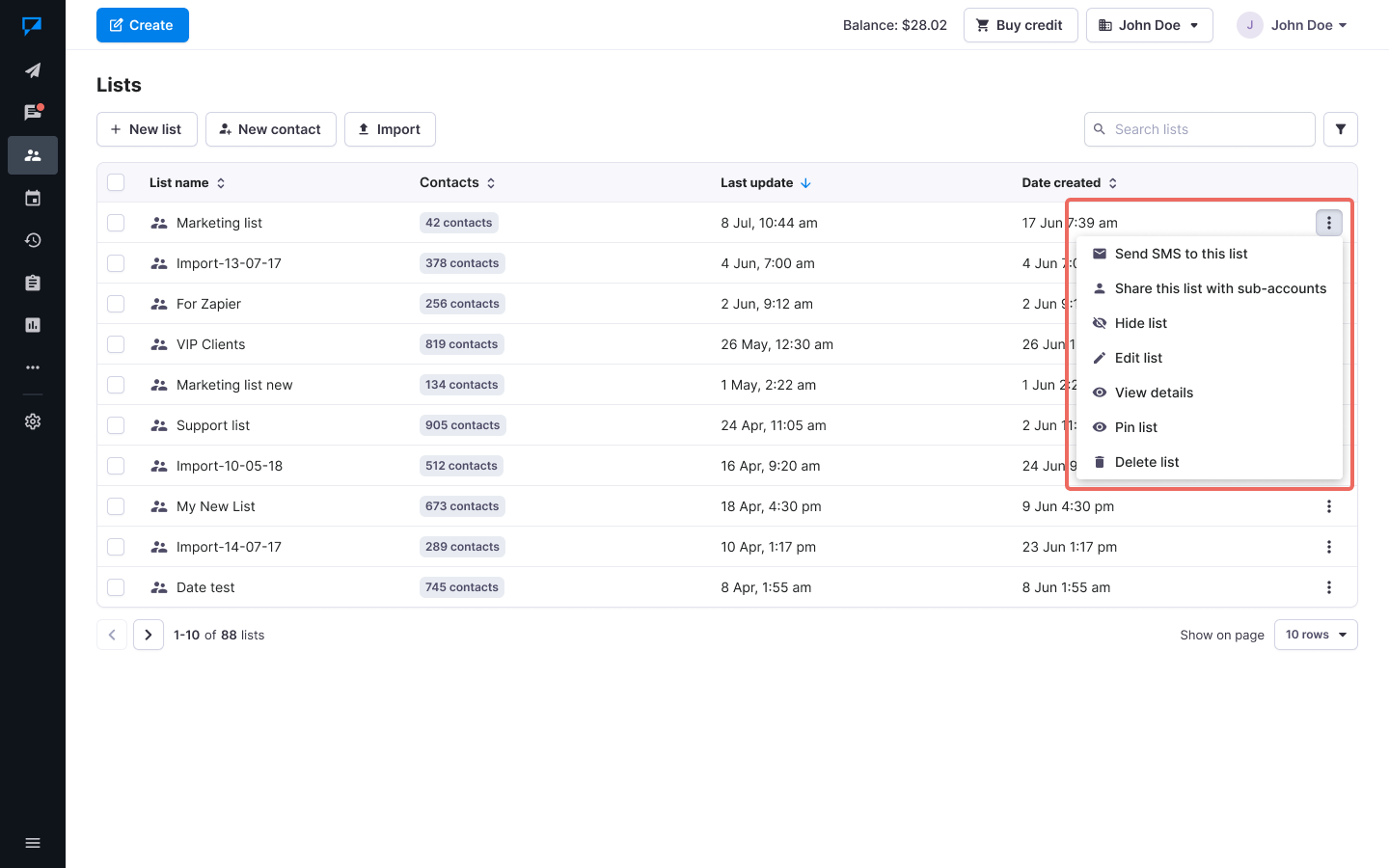
The following list actions are available to you:
- Send SMS to this list: This opens the Compose page, where the list is automatically added to the recipients.
- Share this list with sub-accounts / Make this list private (legacy): Use this action to update the list’s sharing settings.
- Hide list: You can remove the list from the table view without permanently deleting it.
- Edit list: This option lets you rename the list, change sharing settings, or set the list as the default for new contacts.
- View list details: Takes you to a detailed view of the list.
- Delete list: This action will permanently delete the list and if selected – all contacts contained in this list.
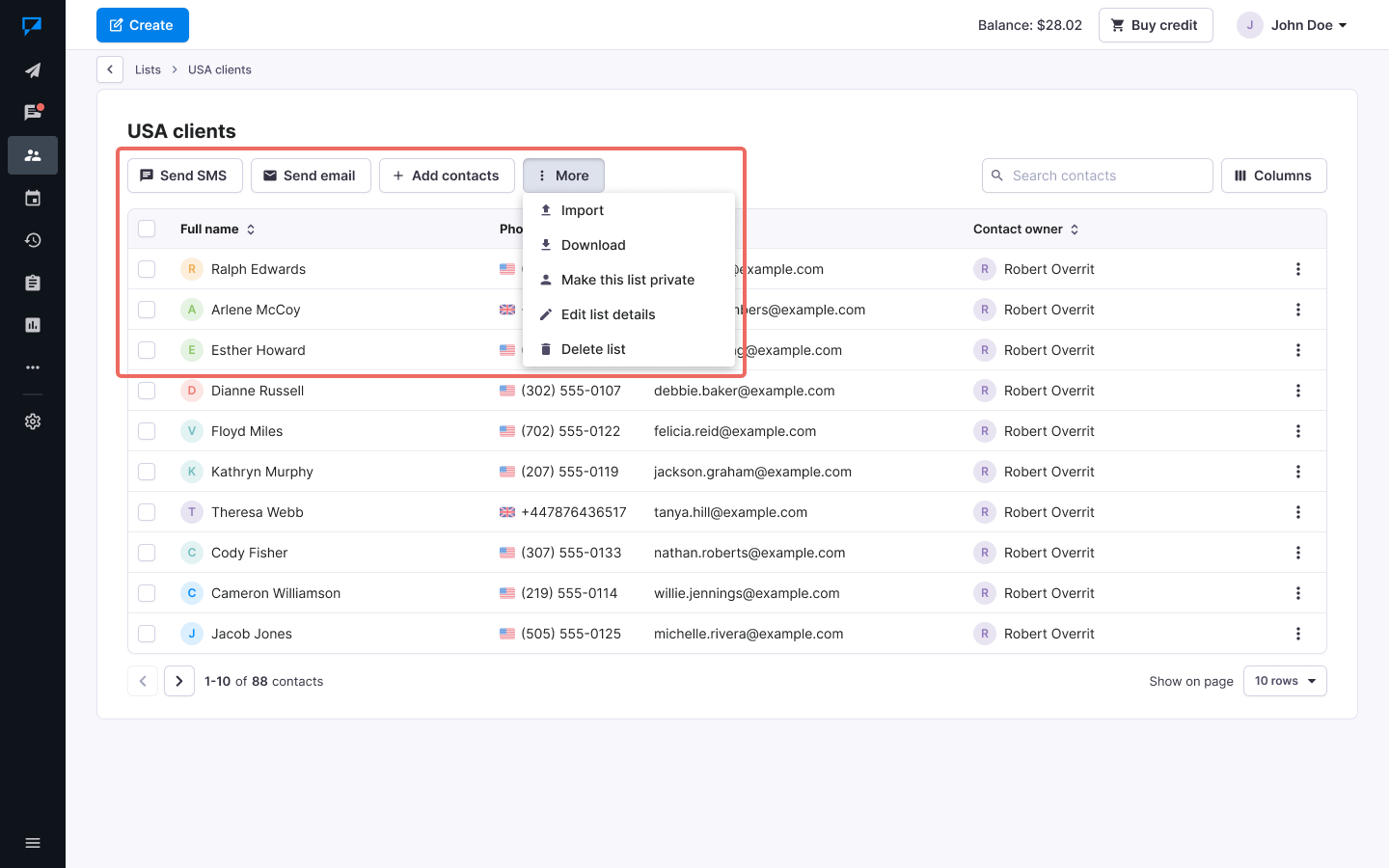
List detail view features overview
To view contacts that are in a specific list – click on that list name.
Actions available in the list detail view:
- Send SMS: This opens the Compose page, where the list is automatically added to the recipients.
- Add contacts: Allows to add new or existing contacts to the list.
- Import: Use this to import contacts and add them to the list.
- Download: Allows you to download the list data as a .CSV or Excel file.
- Share this list with sub-accounts / Make this list private: Use this action to update the list’s sharing settings.
- Edit list details: This option lets you rename the list, change sharing settings, or set the list as the default for new contacts.
- Delete list: This action will permanently delete the list and if selected – all contacts contained in this list.