
Textmagic and WooCommerce integration
- Overview
- What the integration does
- Why use WooCommerce with Textmagic?
- Two ways to use WooCommerce automations
- Choosing how notifications are delivered
- Before you start
- How to set up the WooCommerce integration
- Managing your integration
- Using the WooCommerce integration with Textmagic Automations
- Common use cases
- Frequently asked questions
Overview
Textmagic connects straight to your WooCommerce store. Once it is set up, you can sync your customers and send automated SMS and email based on what is happening with their orders, including abandoned carts.
When you connect, your WooCommerce customers come into Textmagic as contacts. They are mapped to the fields you pick and added to a contact list, so you can message them or drop them into an automation right away.
Your automations also get access to WooCommerce order data and a set of WooCommerce actions. That means you can add order details to your messages, create one-off coupon codes, leave internal notes on orders, change order statuses, and update order fields without lifting a finger.
What the integration does
Here is what you can do with the WooCommerce integration:
- Bring your existing WooCommerce customers into Textmagic as contacts
- Sync new customers from WooCommerce automatically
- Map WooCommerce customer data to your Textmagic contact fields
- Add imported customers to a specific contact list
- Start SMS and email flows from WooCommerce order events
- Win back abandoned carts with automated SMS or email reminders
- Personalize messages with customer, billing, shipping, order, and coupon details
- Create one-off WooCommerce coupon codes inside a flow
- Add internal notes to WooCommerce orders automatically
- Update WooCommerce order statuses from a flow
- Update WooCommerce order fields and custom data
- Use WooCommerce events as wait conditions inside your rules
Why use WooCommerce with Textmagic?
The integration puts customer messaging, marketing, and order updates in one place, so you are not jumping between tabs to get things done.
- Cover the whole order journey: send confirmations, payment updates, shipping news, review requests, and follow-ups on autopilot.
- Recover abandoned carts: nudge customers to finish checkout, and add a one-off coupon code when it helps close the sale.
- Make every message personal: pull in order numbers, totals, payment methods, billing and shipping details, coupon codes, and customer info.
- Cut down on busywork: add order notes, change statuses, and update fields without switching tools.
- Keep your back office in the loop: send customer requests, delivery notes, CRM statuses, or fulfillment instructions back to WooCommerce.
- Get more repeat sales: run post-purchase flows, win-back offers, review requests, and personalized deals.
Two ways to use WooCommerce automations
There are two main ways to use Textmagic automations with WooCommerce.
- Transactional flows. These keep customers up to date on their orders. They can start when an order is created, paid, completed, cancelled, refunded, failed, or when a cart is abandoned. Think order confirmations, payment reminders, shipping updates, and failed-payment follow-ups.
- Marketing and lifecycle flows. These help you bring in more revenue and keep customers coming back. Think abandoned cart recovery, review requests, win-back offers, upsells, birthday deals, and repeat-purchase nudges.
Important: Only send marketing messages to customers who have given consent for that channel. Use your mapped consent fields, tags, lists, or other customer data to filter your audience before you send a promotional SMS or email.
Choosing how notifications are delivered
Your WooCommerce store might already send order notifications through WooCommerce, WordPress, or another plugin. Before you switch on Textmagic automations, decide which system should send each type of message. That way your customers do not get the same notification twice.
- Use Textmagic for SMS when you want branded, automated texts and full control over the wording, timing, filters, follow-ups, and order details you pull in.
- Use Textmagic for email follow-ups when you want to send something different from your standard WooCommerce emails, like review requests, restock reminders, win-back offers, or personalized deals.
- Keep operational emails in WooCommerce if your store already uses WooCommerce templates or another plugin for order receipts and shipping emails.
Before you start
Make sure you have these ready before you set up the integration:
- An active Textmagic account
- A WooCommerce store with administrator access
- A WooCommerce store URL that is publicly reachable
- WooCommerce REST API access turned on
- Permission to create or use WooCommerce REST API keys, if you connect manually
- For SMS: a verified Textmagic number or Sender ID for your country
- For email: a verified sending domain set up in your Textmagic account
You can connect your WooCommerce store straight from Textmagic. If you need to, you can also use WooCommerce REST API keys instead.
How to set up the WooCommerce integration
Head to Settings → Integrations → WooCommerce in your Textmagic account to get going. The setup wizard takes you through connecting, mapping fields, picking a contact list, and syncing your customers.
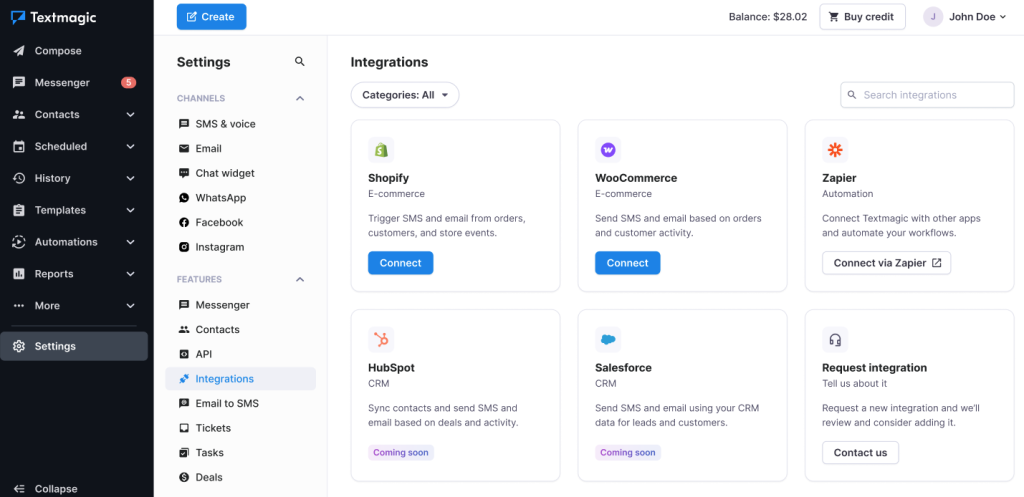
Step 1: Connect to your store
Enter your WooCommerce store URL and click Connect. Textmagic sends you to your store so you can approve access.
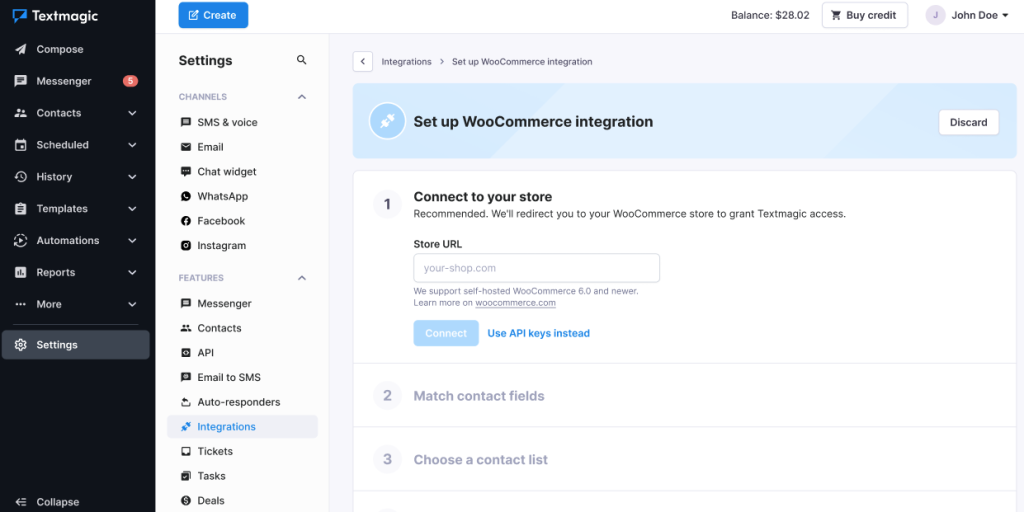
If your setup needs a manual connection, click Use API keys instead and enter the WooCommerce REST API keys you created in your WooCommerce admin.
Once the connection goes through, Textmagic can import your customer data and set up the webhooks it needs for your automation flows.
Step 2: Match contact fields
With your store connected, match your WooCommerce customer data to the right Textmagic contact fields.
These are the fields people usually map:
| WooCommerce customer field | Textmagic contact field |
|---|---|
| customer.id | WooCommerce customer ID |
| first_name | First name |
| last_name | Last name |
| billing.phone | Phone number |
| billing.company | Company |
| billing.address_1 | Billing address |
| shipping.address_1 | Shipping address |
You can map WooCommerce fields to fields you already have, or create new custom fields as you go. Anything you do not want to bring over, just set to Do not sync.
Creating a custom field
To make a custom field, open the dropdown next to the WooCommerce field you want, choose Create new field, give it a name, and pick a field type. If none of the types fit exactly, go with a text field.
When the mapping looks good, click Continue.
Step 3: Choose a contact list
Pick the Textmagic contact list where your WooCommerce customers should land. You can use a list you already have, or set up a fresh one just for WooCommerce customers.
Before you start the sync, here is how it works:
- Your existing WooCommerce customers are imported into the list you chose.
- Contacts you already have in Textmagic get updated when they match a WooCommerce customer.
- New WooCommerce customers sync over automatically.
- Updates from WooCommerce sync across based on your integration settings.
- Edits you make to contacts in Textmagic do not usually go back to WooCommerce, unless you use a WooCommerce action inside a flow.
Once you have picked your list, click Start sync.
Step 4: Sync WooCommerce customers
Textmagic starts importing your WooCommerce customers in the background, so feel free to leave the page while it runs.
When the sync finishes, open the contact list to look over the imported customers and double-check that the fields lined up the way you wanted.
Managing your integration
After setup, go back to Settings → Integrations → WooCommerce any time to manage the connection.
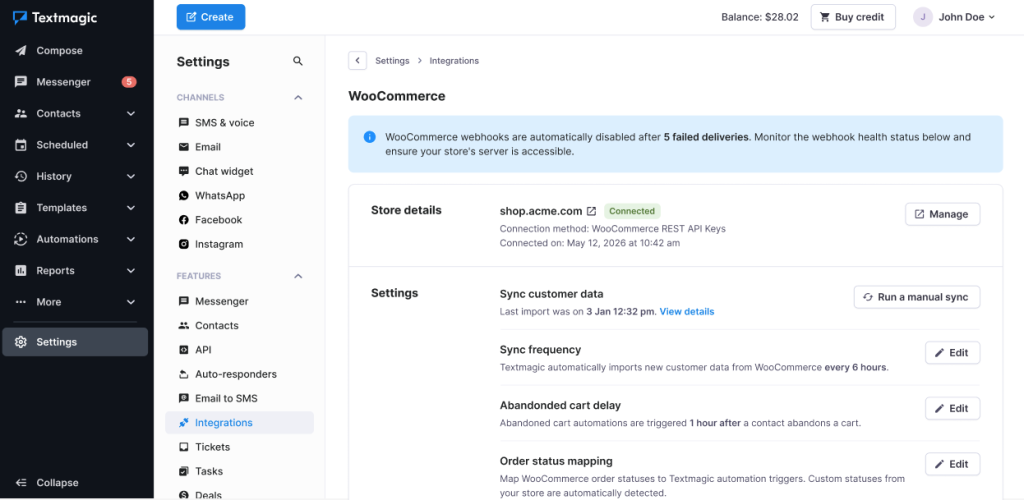
From there you can:
- See your connected store details
- Run a manual customer sync
- Check the last import time and sync details
- Change how often customers sync
- Change the abandoned cart delay
- Manage your WooCommerce order status mapping
- Delete the integration
WooCommerce turns webhooks off automatically if they keep failing to deliver. Keep an eye on the webhook health status in your integration settings, and make sure your store server stays reachable.
Note: If you delete the integration, the WooCommerce webhooks are removed, customer sync stops, and any automations using WooCommerce triggers pause until you connect a store again.
Using the WooCommerce integration with Textmagic Automations
Once your store is connected, WooCommerce triggers and actions show up in Textmagic Automations. You can build flows that send messages, wait for events, create coupons, update orders, and send useful info back to WooCommerce.
The quickest way to start is to create a new automation and pick a WooCommerce trigger. From there you can add SMS, email, rules, and WooCommerce actions to map out the whole customer journey.
Using WooCommerce triggers in Automations
WooCommerce events can kick off a flow when something happens in your store. The triggers you can use include:
- Abandoned cart: fires when a customer leaves items in their cart without checking out
- Order created: fires when a new order comes in
- Order paid: fires when payment goes through
- Order completed: fires when an order is marked complete
- Order cancelled: fires when an order is cancelled
- Order refunded: fires when an order is refunded
- Order failed: fires when an order fails
You can filter each trigger by store, product category, specific product, order value, and other contact data. That lets you target your messages, like a VIP thank-you text for big orders, or a care guide for people who bought a certain product.
Personalize messages with WooCommerce dynamic fields
WooCommerce triggers make customer and order data available right inside your messages, so you can add dynamic fields to your SMS and emails instead of copying details over by hand.
The dynamic fields you can use include:
- Customer first and last name
- Customer email and phone number
- Order number
- Order total
- Currency
- Order status
- Payment method
- Billing first name, last name, company, address, city, postcode, and country
- Shipping first name, last name, company, address, city, postcode, and country
- Coupon code created earlier in the flow
So instead of a generic message, you can send something like:
Hi {First name}, we got your order #{woocommerce.order_number}. Your total is {woocommerce.order_total} {woocommerce.currency}, and we will let you know as soon as it is ready.
Dynamic fields make your messages more useful and easy to recognize, because each one points to that customer’s exact order, payment, shipping, or coupon.
WooCommerce actions in Automations
WooCommerce actions let your flows update your store, not just send messages. They tie your customer messaging together with your order management and fulfillment work.
The WooCommerce actions you can use are:
- Add order note
- Update order status
- Create unique coupon
- Update order field
Add order note
Use Add order note to drop an internal note onto the related WooCommerce order automatically.
It comes in handy when you want to:
- Log a customer service chat
- Flag a VIP order
- Pass instructions to your fulfillment team
- Mark orders that need special handling
- Keep a record of what was said to the customer
For example, if a customer texts back with delivery instructions, your flow can add those as an order note so your team sees them right in WooCommerce.
Update order status
Use Update order status to change the WooCommerce status of the related order automatically.
The statuses you can set include:
- Pending payment
- Processing
- On hold
- Completed
- Cancelled
- Refunded
- Failed
This keeps your messaging in step with your order workflow. For example, a flow can put an order On hold if a customer skips a verification step, or move it to Processing once they confirm.
Create unique coupon
Use Create unique coupon to generate a WooCommerce coupon code automatically inside a flow.
You can choose from these discount types:
- Fixed cart discount
- Fixed product discount
- Percentage discount
You can set the amount, expiry date, usage limit, and product restrictions where they apply. You can also decide whether the coupon is unlimited, good for one use per customer, or good for one use only.
A typical abandoned cart flow looks like this:
- A customer abandons their cart
- The flow waits for a set time
- Textmagic creates a one-off WooCommerce coupon
- Textmagic sends an SMS or email with the coupon code
Because each code is created on its own, you get more control over your promotions and less risk of a code being shared around.
Update order field
Use Update order field to change WooCommerce order fields or custom data from a flow.
This helps you:
- Update internal CRM statuses
- Save delivery preferences
- Store fulfillment instructions
- Pass order info to your warehouse
- Track where a customer is in their lifecycle
- Mark orders for special handling
It makes Textmagic part of how you run things day to day, not just a tool for sending messages.
Using WooCommerce events as wait conditions in Rules
You can also use WooCommerce events inside the Wait until event happens rule. A flow can pause until a WooCommerce event happens, then branch one way or another depending on whether it did.
For example:
- Abandoned cart, then wait for Order paid. If the customer pays within the wait time, drop them out of the recovery flow. If not, send a reminder or a coupon.
- Order paid, then wait for Order completed. If the order is completed, send a review request later on. If not, send a reassuring message or create an internal task.
- Order failed, then wait for Order paid. If the customer pays, stop the reminders. If not, send a follow-up text.
Wait conditions are handy when you want your flow to react to what the customer does next, instead of sending the same sequence to everyone.
Common use cases
Abandoned cart recovery with a unique coupon
Start the flow when a cart is abandoned, wait for your chosen delay, create a one-off coupon code, and send it by SMS or email.
Example SMS: Hi {First name}, you left something in your cart. Finish your order today and use {woocommerce.coupon_code} for 10% off.
Order confirmation
Send an SMS when a new WooCommerce order comes in.
Example SMS: Thanks for your order, {First name}. We got order #{woocommerce.order_number} and will keep you posted.
Payment confirmation
Send a message when an order is paid. Use dynamic fields to include the order number, total, and payment method.
Failed payment recovery
Start a flow when an order fails. Send an email first, wait 24 hours, then send an SMS reminder if it is still unpaid.
Post-purchase review request
Start a flow when an order is completed, wait a few days, then ask for a review from customers who have opted in to marketing messages.
VIP customer workflow
Use an order value filter to spot your biggest orders. Send a personal thank-you text, add an internal order note, and update a field like “customer_priority”.
Warehouse or fulfillment escalation
If a customer replies with a delivery request, add an order note and update a custom WooCommerce field automatically, so your fulfillment team can pick it up.
Refund follow-up
Start a flow when an order is refunded. Send a confirmation and leave an internal note for your support team.
Win-back campaign
After an order is completed, wait a set number of days. If no new order comes in, send a win-back offer with a one-off coupon code.
Frequently asked questions
What happens if a customer is already in Textmagic when I run the sync?
If there is already a matching contact, it gets updated with the WooCommerce data based on your field mapping. That keeps you from ending up with duplicates.
Do my Textmagic contact edits sync back to WooCommerce?
Customer field sync mainly works one way, bringing WooCommerce data into Textmagic. That said, WooCommerce actions inside a flow can update certain order data, like order notes, statuses, coupon codes, and order fields.
Can I personalize SMS and email with WooCommerce order data?
Yes. WooCommerce triggers make dynamic fields available in your SMS and email editors. You can drop in customer fields, billing and shipping details, order info, payment data, and any coupon codes you created.
Can Textmagic create WooCommerce coupons automatically?
Yes. The Create unique coupon action makes a coupon code inside your flow. You can then add that code to a follow-up SMS or email.
Can Textmagic update WooCommerce order statuses?
Yes. The Update order status action changes the status of the related order when your flow reaches that step.
Can Textmagic add notes to WooCommerce orders?
Yes. The Add order note action adds an internal note to the WooCommerce order tied to the event.
Can Textmagic update custom WooCommerce order fields?
Yes. The Update order field action updates WooCommerce order fields or custom data that the integration can reach.
What happens if WooCommerce webhooks fail?
WooCommerce may switch webhooks off if they keep failing to deliver. You can check their health in your WooCommerce integration settings. Make sure your store server is reachable and your store stays online.
What happens if I delete the WooCommerce integration?
Textmagic disconnects your store, removes the WooCommerce webhooks, stops customer sync, and pauses any automations that rely on WooCommerce triggers.
How am I charged for messages sent through WooCommerce automations?
They come out of your Textmagic account balance, the same as any other SMS or email you send from Textmagic. SMS pricing depends on the destination country and how long the message is.
Can I use WooCommerce automations on any Textmagic plan?
It depends on your account and plan. Check your billing page or reach out to Textmagic support if you are not sure what is included.